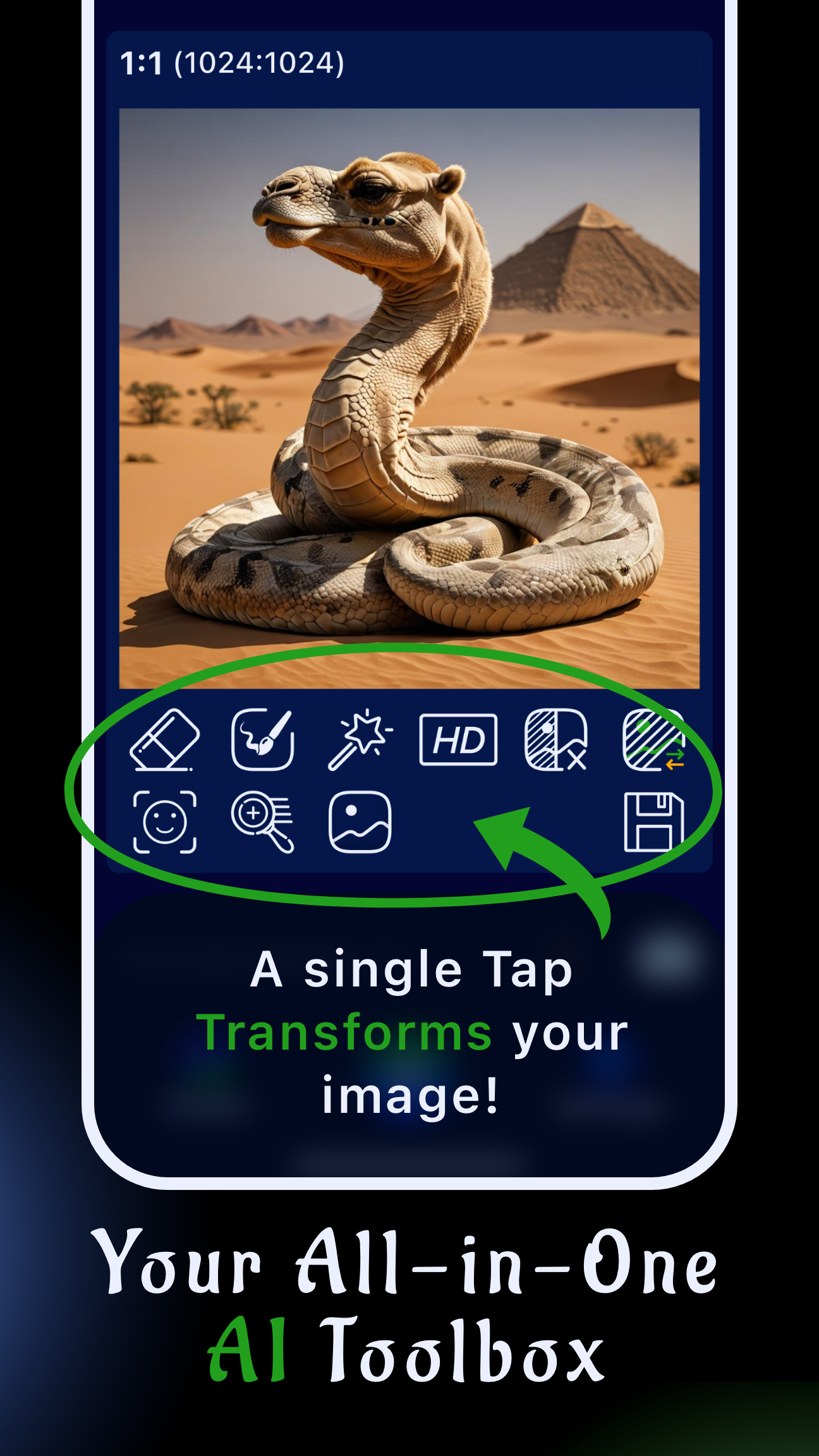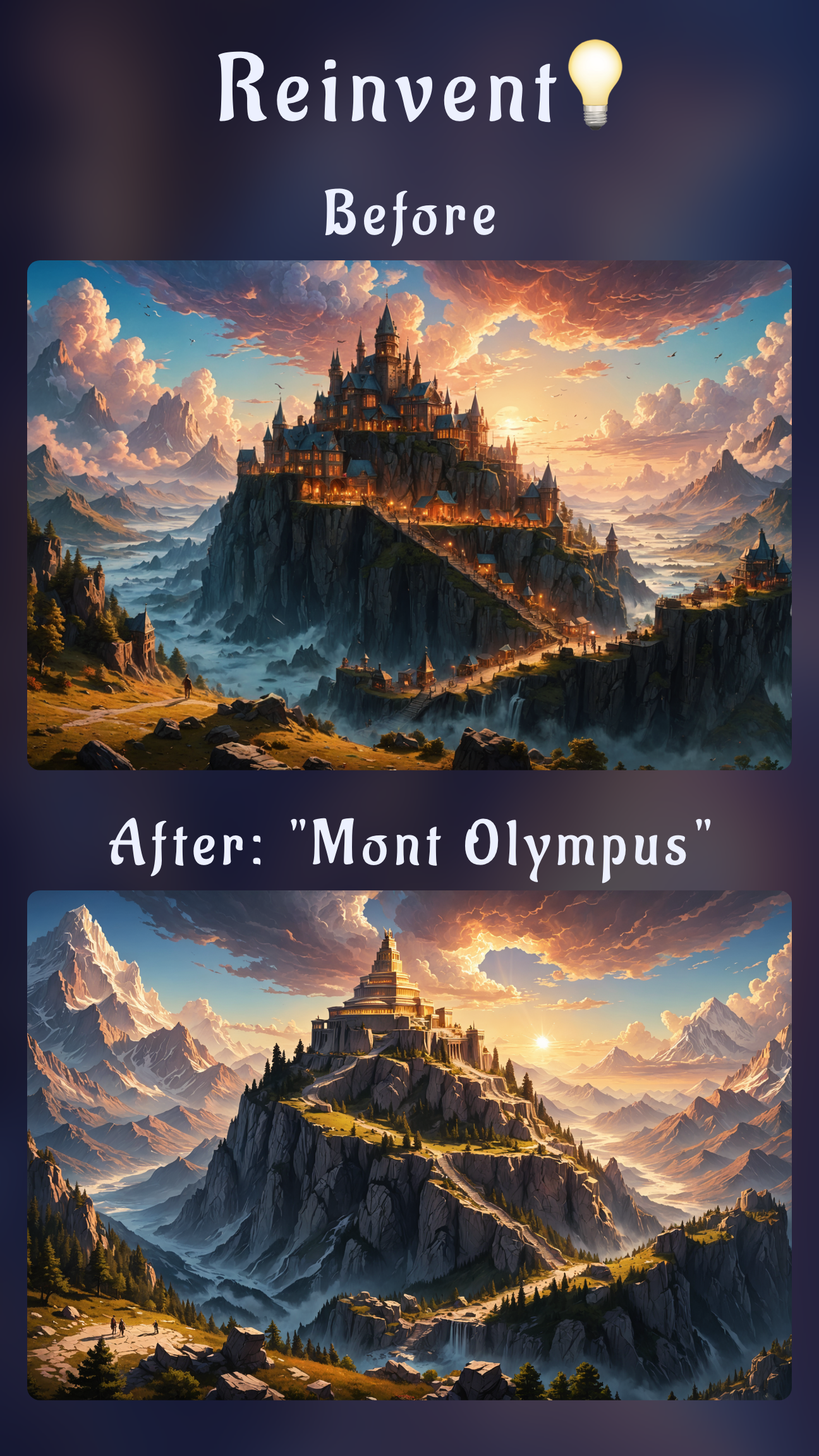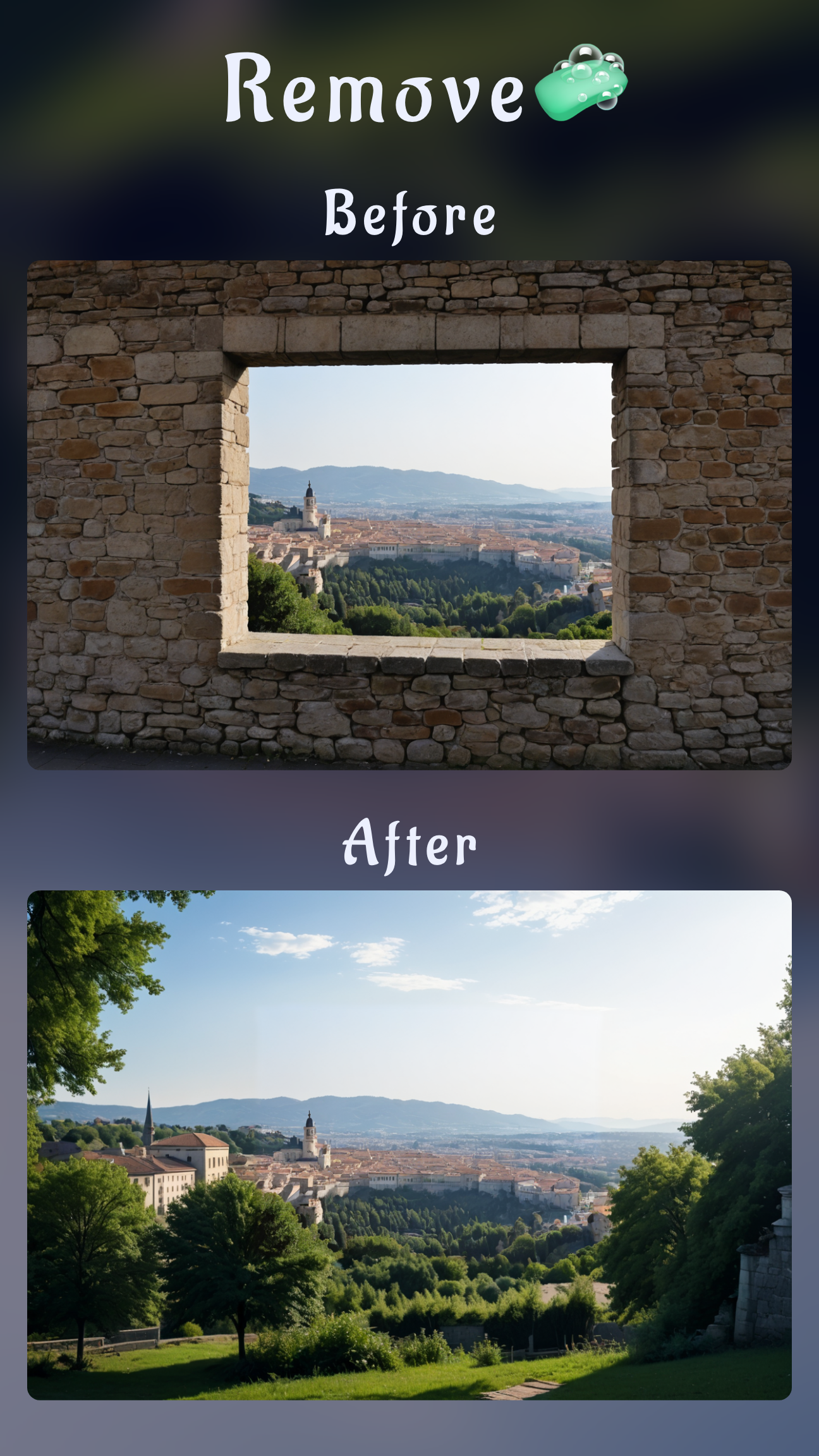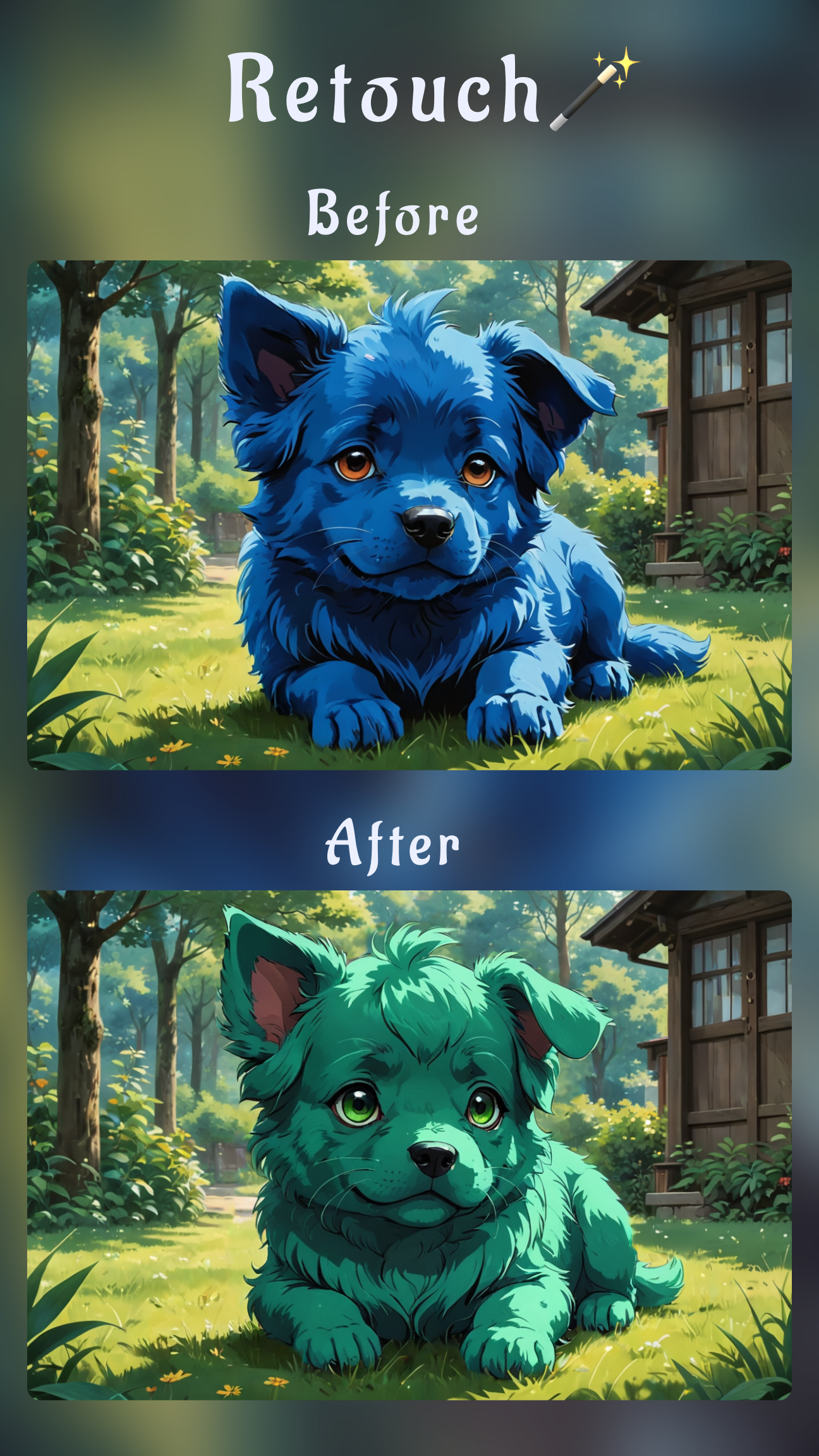
Creating a logo with AI on mobile is now a practical way to ship brands from anywhere. With Sinaï Studio you can move from concept to export without leaving your phone, which keeps feedback loops short, covers last-minute requests, and lets you stay on top of launch deadlines.
Sinaï Studio’s mobile-first design stack gives you prompt-based generation, advanced editing, and production exports in one workspace. Follow the workflow below to plan your brand direction, generate polished marks, and deliver assets fast.
What you’ll get
- Prompt checklists that keep lettering, icons, and colors on-brief.
- A repeatable mobile workflow for generating, refining, and testing logo layouts.
- Export-ready tips for transparent PNGs and HD files straight from your phone.
Why Sinaï Studio is the best mobile logo design app
Sinaï Studio is built for designers who need both creativity and control on the go. These logo design tips for small business app workflows apply just as well to agencies: every project keeps layers, history, and precise editing tools so you can adjust the last 5% that clients notice. Localization in 17 languages and iOS plus Android support mean brand managers, founders, and agencies can collaborate anywhere.
- Design-grade editing: Inpainting, Object Removal, Detailer, and Style Transfer help you sculpt icons, fix kerning, and align colors.
- Reusable projects: Save variations, duplicate layouts, and keep reference images next to each prompt thread.
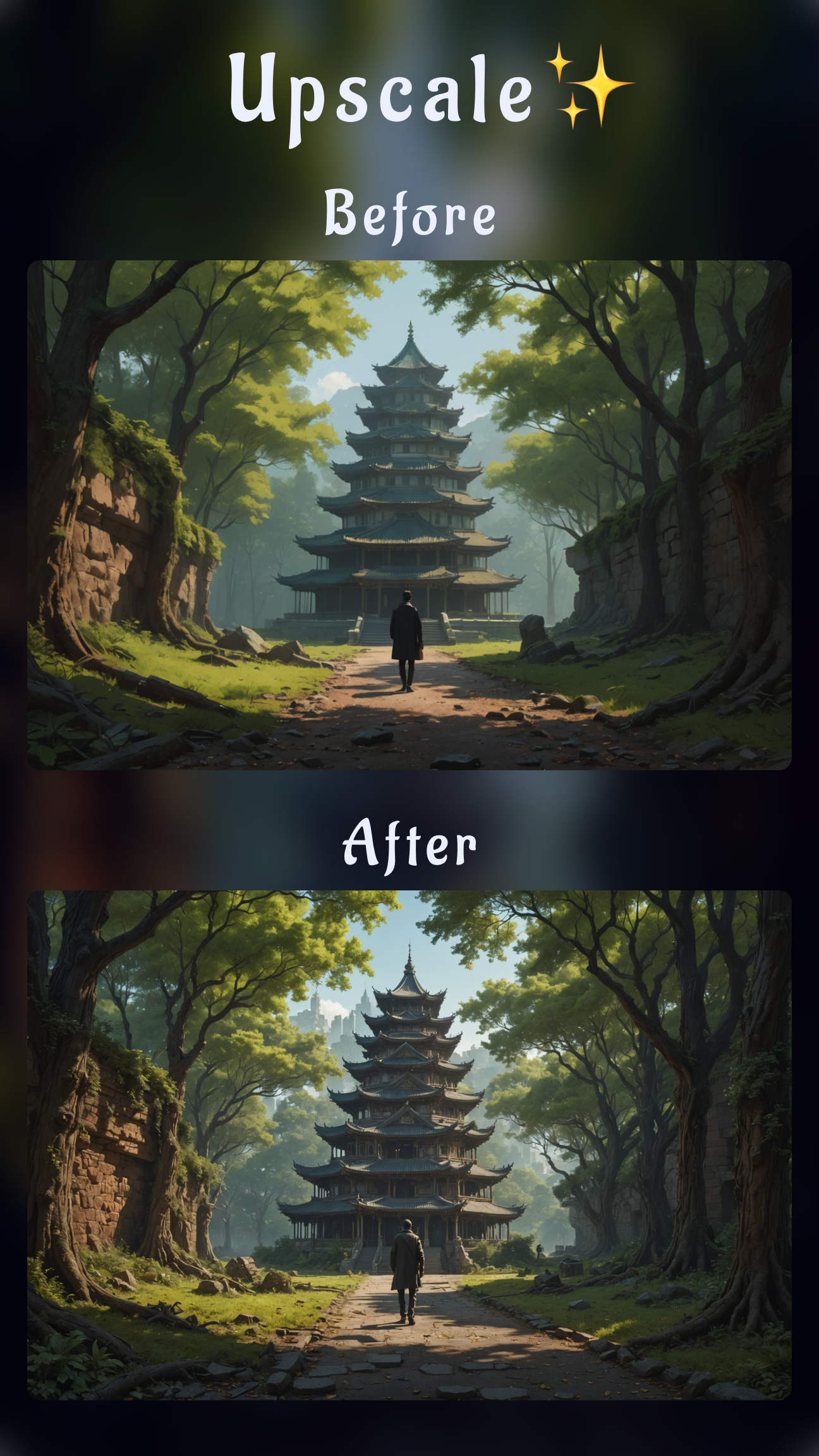
- Frictionless exports: Background Removal and HD Upscale generate transparent, high-resolution files the moment a logo is approved.
Get Sinaï Studio set up on your phone
Download the app before kickoff so you can switch devices without breaking momentum.
Install Sinaï Studio on iPhone
- Open the App Store listing and tap Get.
- Allow notifications so you receive render alerts while multitasking.
- Sign in or create a free account, then pin Sinaï Studio to your Home Screen dock for quick access.
This AI logo generator iPhone app keeps recent prompts and exports synced with iCloud so you can review approvals or share assets in seconds.
Install Sinaï Studio on Android
- Visit the Google Play listing and tap Install.
- Grant storage access so the app can save exports directly to your gallery or cloud drive.
- Toggle the HD Upscale reminder in Settings to prompt you before sharing final files.
Because the toolkit runs smoothly across mid-range and flagship devices, it easily doubles as the best AI logo maker app for Android teams that brainstorm and export assets in the same sprint.
Step-by-step mobile logo creation
Use this AI logo design workflow step by step to keep clients aligned while you move between ideation, editing, and approvals on one device.
- Collect brand references. Add moodboards or sketches to your Sinaï Studio project notes so every prompt stays aligned with the brief.
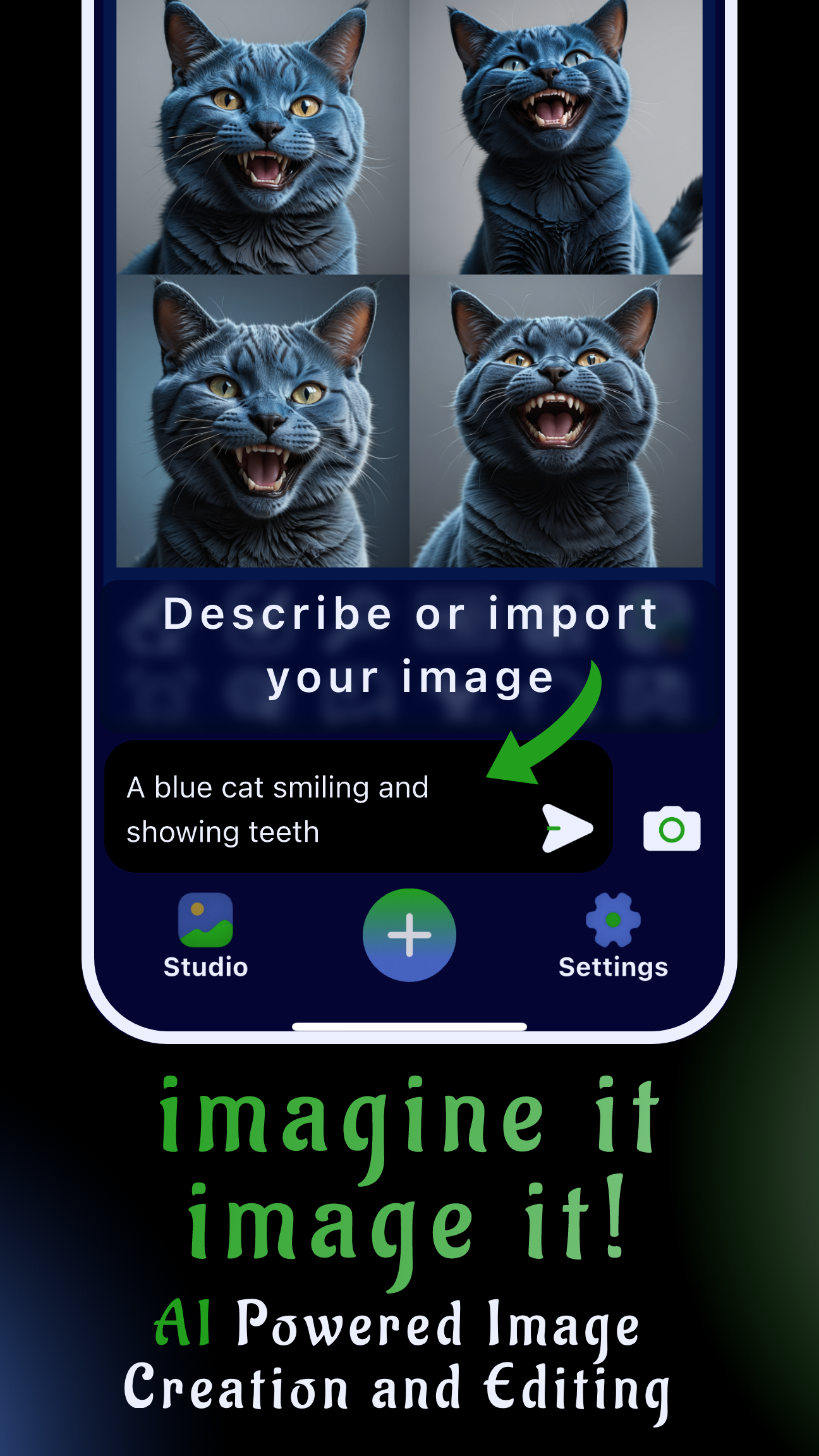
- Generate first logo passes. Write prompts that mention logo type, typography style, icon concept, and color guidelines. Generate 2–4 outputs per idea to compare.
- Refine shapes and typography. Use Inpainting to redraw icons, Detailer to sharpen letterforms, and Object Removal to clear artifacts while zooming in for pixel-level edits.
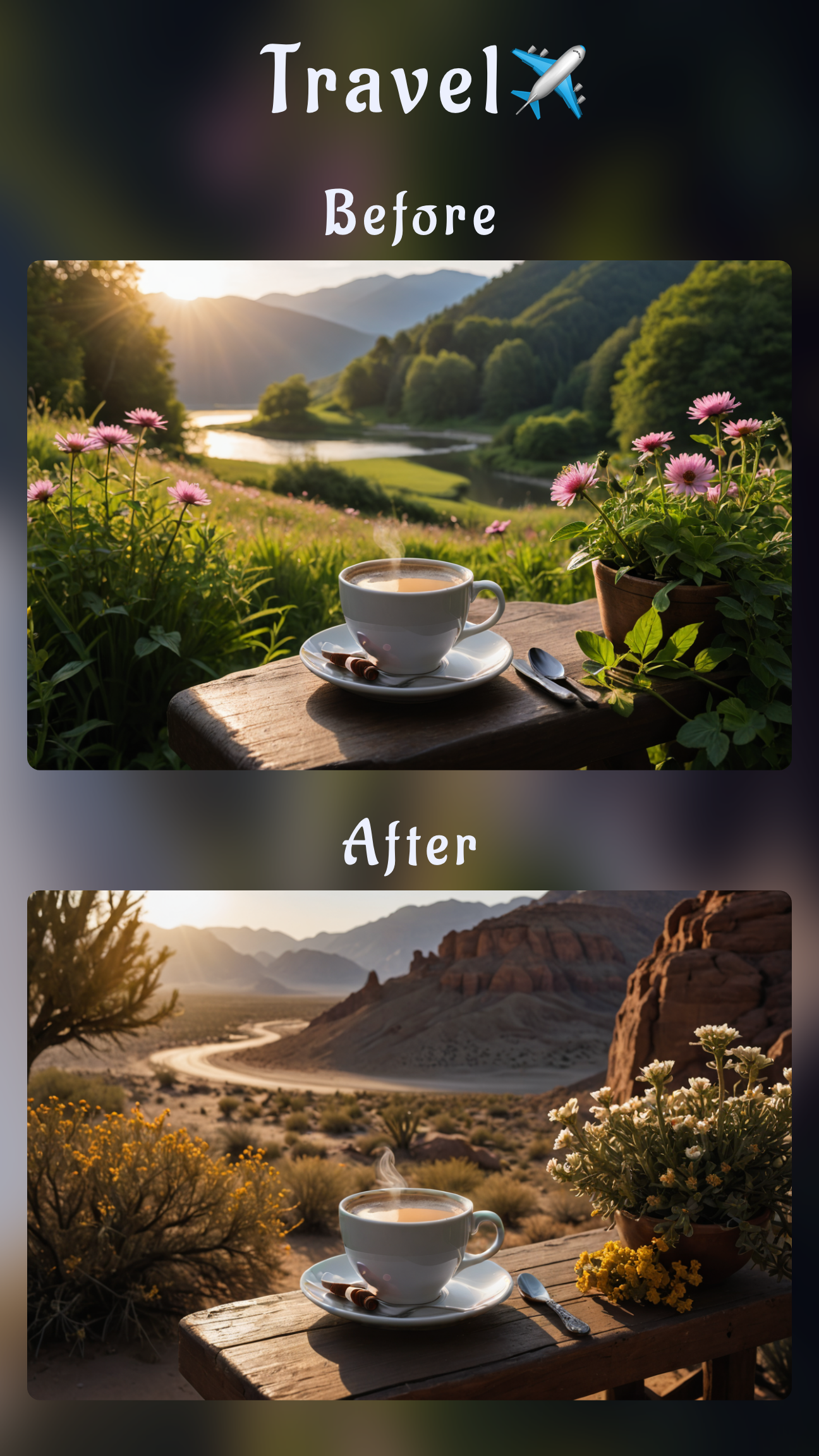
- Test alternate layouts. Duplicate your favorite result and leverage Image-to-Image or SceneShift to try stacked, horizontal, or icon-only compositions without starting over.
- Finalize colors and exports. Apply Style Transfer or HEX values for brand palettes, then upscale and save transparent PNG plus high-res JPEG versions.
Prompt formulas for mobile branding
Use specific phrasing so Sinaï Studio understands the logo format, materials, and layout you expect. The mobile AI logo prompts examples below cover the most requested brand directions.
Wordmark and lettermark prompts
- Minimal wordmark:
"Clean lowercase wordmark for ‘Waveform Labs’, geometric sans-serif, wide tracking, cool gray and electric teal, centered on dark gradient" - Monogram:
"Interlocking ‘AV’ lettermark, high-contrast serif, copper foil emboss, luxury boutique vibe, on matte charcoal backdrop"
Mascot and emblem prompts
- Mascot badge:
"Friendly otter mascot holding paint brush, flat vector, bold outlines, navy and coral palette, circular esports badge" - Heritage emblem:
"Vintage crest for mountain roastery, shield layout, line art mountains, condensed serif typography, muted earthy palette"
Keep brand colors consistent
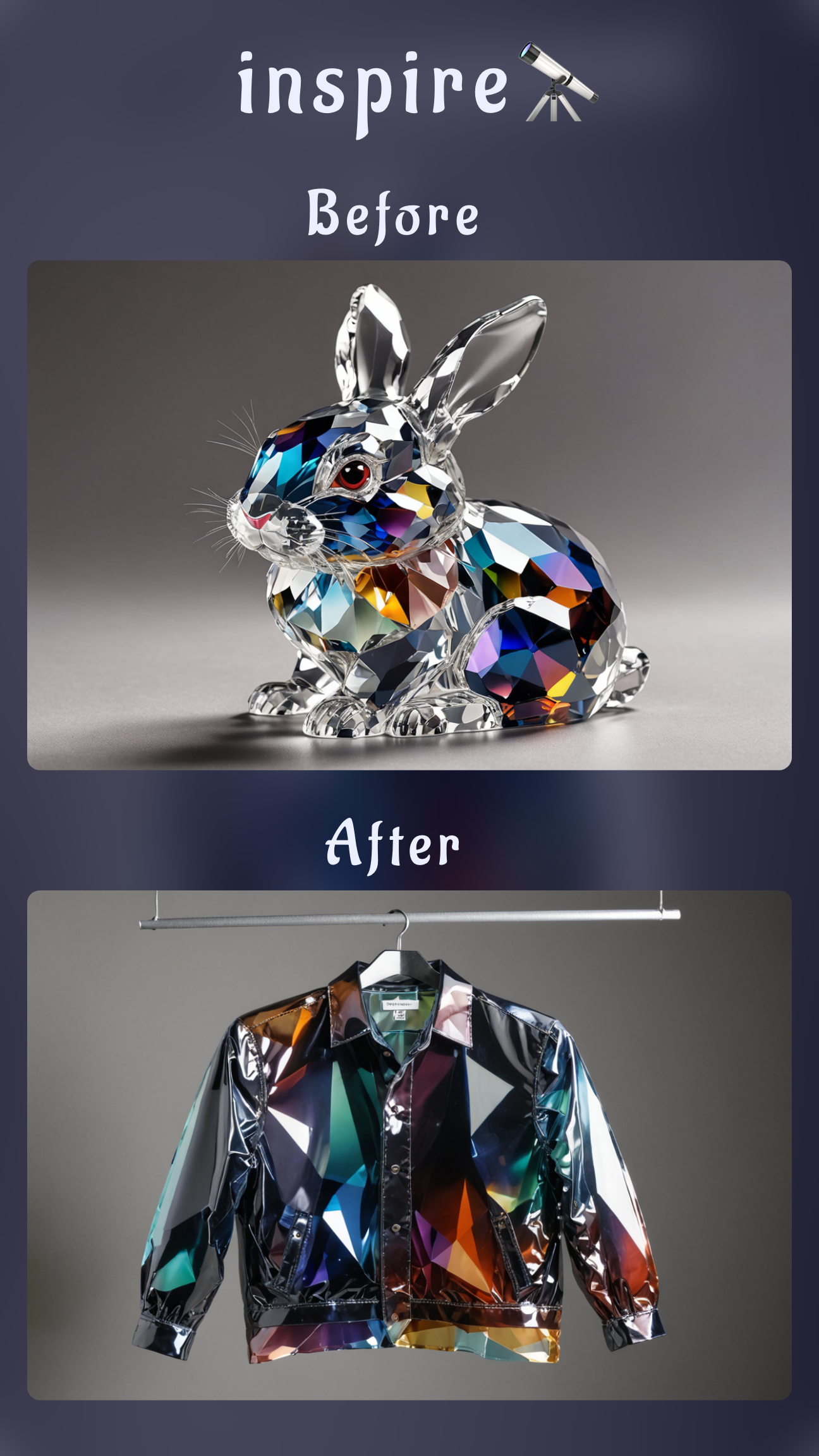
Reference HEX values directly in prompts (e.g., “primary color #0F62FE, accent #FFD166”), or run Style Transfer using a palette image. Sinaï Studio doubles as a mobile AI color palette generator whenever you sample colors from reference photos. When you need inspiration, borrow techniques from the illustration style workflow to mix textures and lighting that fit your brand.
Refine and export your AI logo
Tidy details with inpainting, refiner, and style transfer
- Sharpen typography: Mask letters with Detailer to fix fuzzy edges or adjust kerning without regenerating the entire logo.
- Swap icon elements: Use Inpainting to replace dated symbols or add meaningful shapes while keeping colors intact.
- Match brand look: Apply Style Transfer from existing marketing assets so new logos inherit textures and lighting that feel on-brand.
These mobile AI logo editing tools keep you in control of every pixel, even when feedback lands minutes before launch.
Export a transparent logo from your phone
Follow these steps to export AI logo transparent background mobile files without needing desktop software.
- Tap Background Removal and preview the transparency layer for harsh edges.
- Select HD Upscale to generate a crisp 2048 px (or higher) version ready for print applications.
- Export both transparent PNG and JPEG variants so you can drop the logo into decks, storefront mockups, or the advanced background removal workflow.
Troubleshoot common mobile logo issues
This AI logo troubleshooting mobile checklist fixes the problems creative directors flag most often.
- Text looks distorted: Increase prompt weight on “clean typography” and re-run Detailer on the wordmark.
- Icons feel generic: Import a sketch or photo and use Image-to-Image to anchor the composition before regenerating.
- Palette drifts off-brand: Apply Style Transfer from a swatch or duplicate the project and lock in HEX codes inside each prompt.
- Need social avatars fast: Crop within Sinaï Studio, duplicate the square canvas, and upscale so the logo stays legible at small sizes.
Pro tips to launch faster
- Prototype from sketches: Photograph hand-drawn ideas and convert them inside Sinaï Studio—pair it with our drawing-to-image guide for smoother transitions.
- Clean supporting graphics: Remove stray props or backgrounds from mockups with the object removal tutorial to keep focus on the mark.
- Build cohesive launch visuals: Once the logo is locked, repurpose the same project to generate merch, packaging, or stickers using the mobile sticker workflow.
FAQs
This AI logo app FAQ captures the top questions we see from busy founders and design teams moving to mobile.
Can I design a professional logo entirely on my phone?
Absolutely. Sinaï Studio delivers prompt generation, granular editing, and HD exports in one mobile workspace. As long as you save each iteration to a project you can revisit layers, adjust feedback, and sign off without ever switching to desktop.
Which mobile settings keep AI logos sharp for print?
Use HD Upscale to jump to 2048–4096 px, then export as PNG for the main logo and JPEG for mockups. You can also download layered PSD alternatives if you want to finish polish in desktop tools later.
How do I export an AI logo as a transparent PNG on mobile?
After background removal, choose PNG in the share sheet. Sinaï Studio preserves transparency so you can drop the logo into decks, store signage, or website headers without extra editing.
What’s the fastest way to iterate multiple logo layouts on mobile?
Duplicate your strongest concept, then use Image-to-Image prompts (“make a horizontal lockup”, “icon-only social avatar”) to generate new layouts while keeping colors and typography consistent. Save each version in the project so clients can compare options side by side.