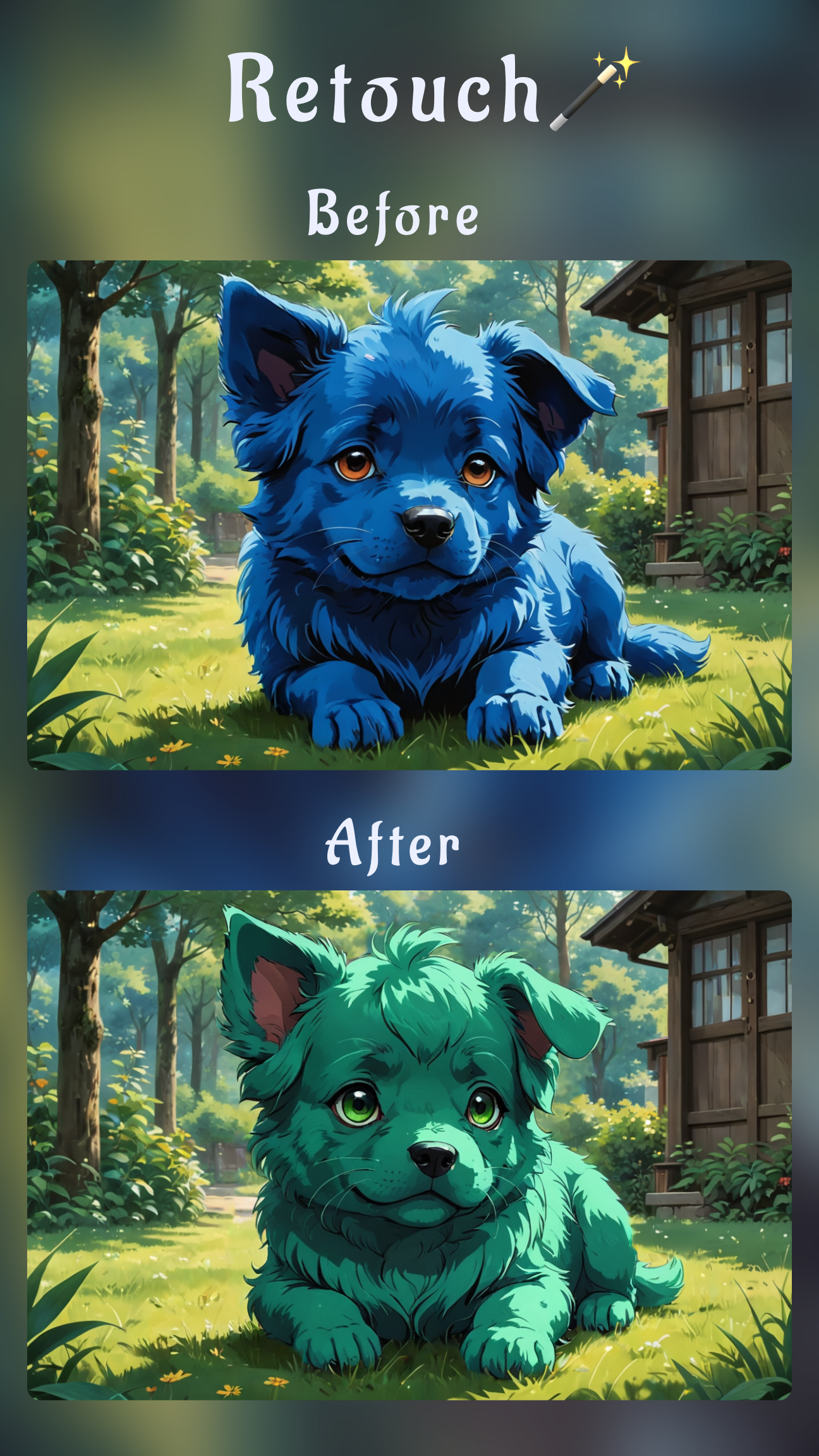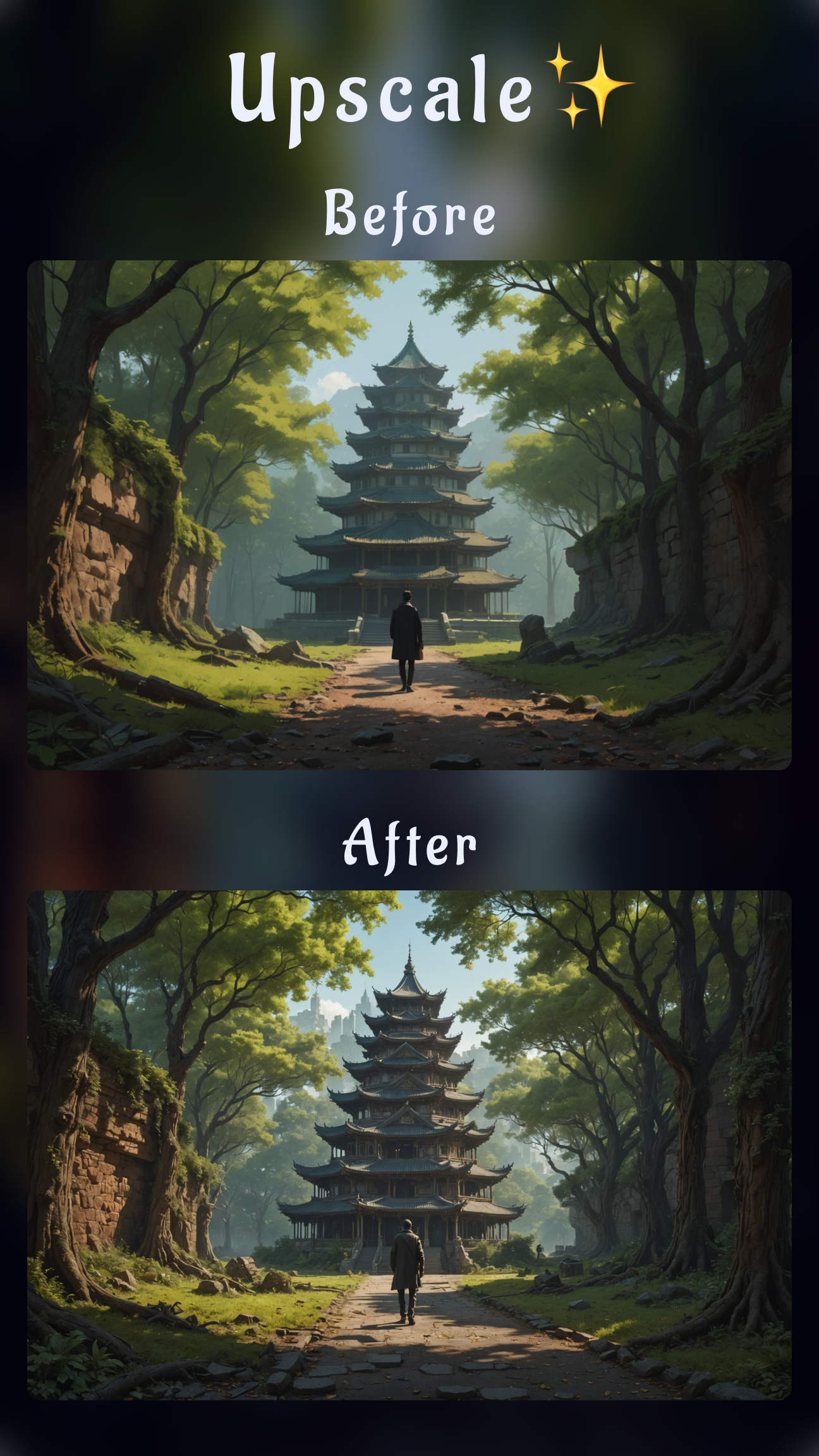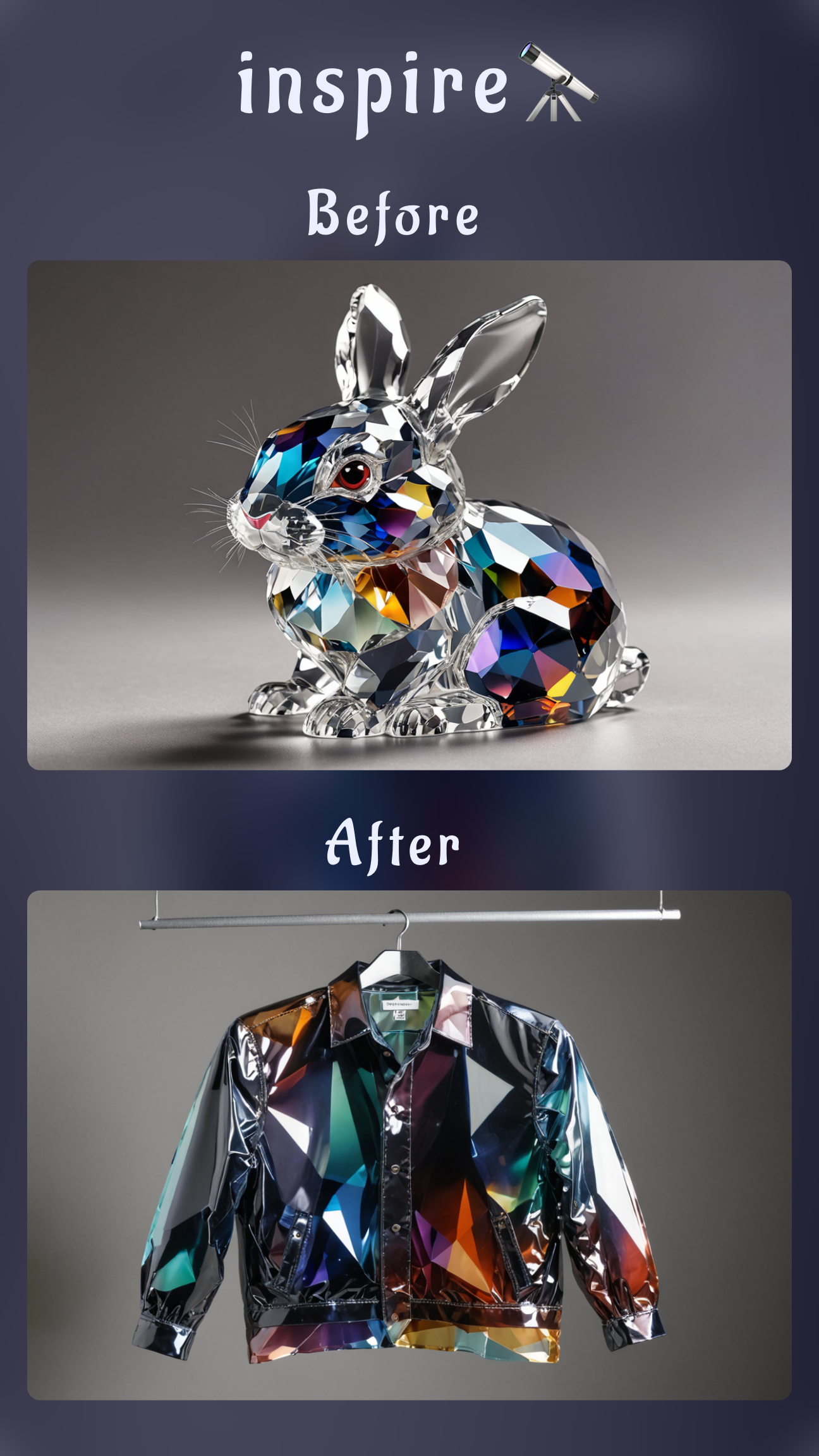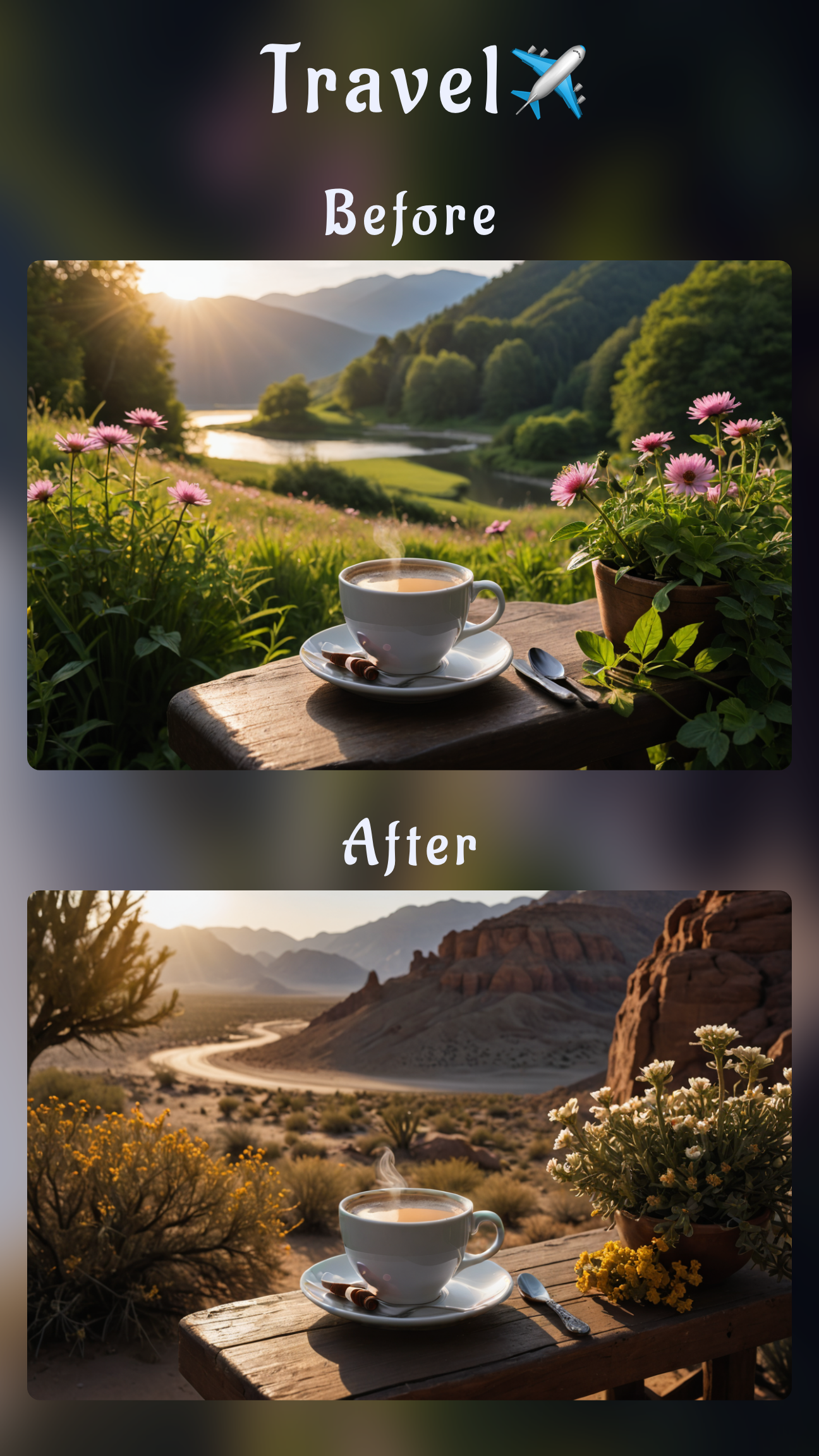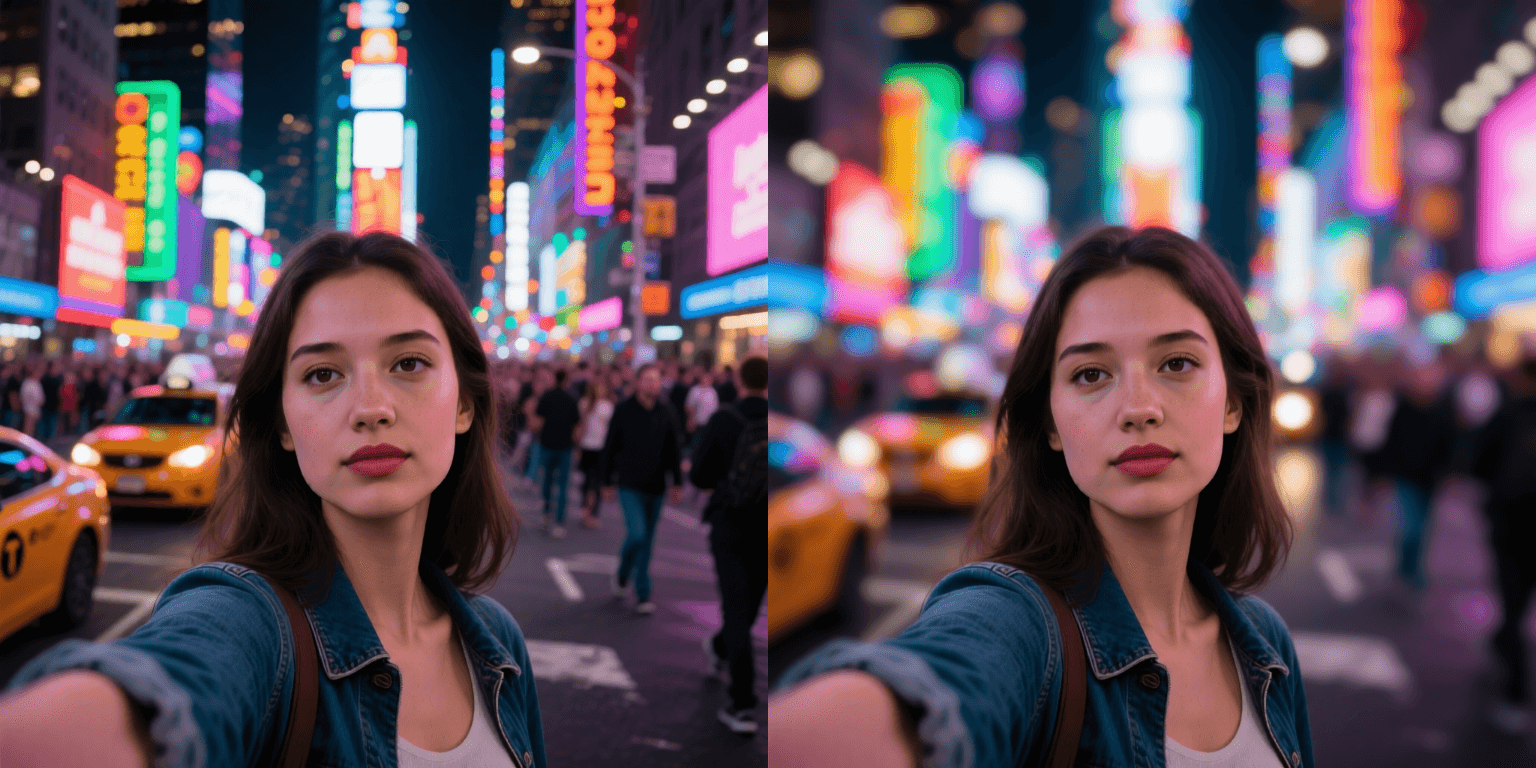
A blur photo background app should deliver creamy bokeh without forcing you back to desktop software. Sinaï Studio makes that happen, combining SceneShift and Image-to-Image edits so you can isolate subjects, control blur intensity, and publish gorgeous portraits straight from your phone.
The mobile AI editor layers depth-aware masking, HD export, and pro presets for iPhone and Android. Follow the workflow below to soften any portrait backdrop, keep faces tack sharp, and stay ready for last-minute client requests on the go.
What you’ll get
- SceneShift and Image-to-Image workflows that turn busy backgrounds into smooth bokeh in minutes.
- Prompt and masking tips to keep your subject crisp on iPhone and Android edits.
- An export checklist so your HD portraits are share-ready for social feeds and client approvals.
Why Sinaï Studio is the best app to blur background
Sinaï Studio blends AI depth detection with hands-on tools, so you decide how much blur lands in every portrait. Unlike one-click filters, the editor understands your mask and prompt before rebuilding the environment.
- SceneShift for instant bokeh: Swap or soften backgrounds while the app protects hair, accessories, and micro-contrast around your subject.
- Image-to-Image control: Start from a finished shot, describe the depth you want, and generate variations until the blur feels natural.
- Mobile-first export: Upscale inside the app so you can send a polished file without rerouting to desktop utilities.
If the brief evolves, you can also change a photo background in minutes without leaving the same project, keeping every version consistent.
How to blur background on iPhone with Sinaï Studio
iPhone shooters can blend native portrait captures with Sinaï Studio’s depth-aware edits. Here’s the fast path when you need bokeh between shoots.
- Import the HEIC or JPEG from your Photos app and duplicate the layer so you can compare before/after.
- Select SceneShift, paint loosely around your subject, and confirm the mask with the check icon.
- Type a short prompt like “soft studio bokeh with diffused lights” and push the blur slider until edges melt just behind your subject.
- Tap Save to store the edit in your project, then use HD Upscale for print-ready output if needed.
Fine-tune the blur effect iPhone photographers expect
- Balance depth: Keep the blur slider between 45–65% for portraits; higher values can flatten hair detail.
- Use lighting prompts: Add phrases like “golden hour haze” or “string lights in the distance” so the AI reconstructs believable light sources.
- Combine with Detailer: If eyelashes or jewelry lose clarity, run Refiner on those areas after SceneShift to restore micro-sharpness.
Make a blur photo background iPhone edit after shooting
When a client wants more separation days later, duplicate the original project and re-run SceneShift with a subtler prompt. You can also try the Image-to-Image edit button to keep the same composition but request “portrait with airy bokeh, shallow depth of field” for several alternatives. Save your favorite take and deliver it alongside the native capture so stakeholders can choose their ideal look.
Tutorial: Use the app to blur background of photo on mobile
These steps work on iPhone and Android, ensuring your app to blur background of photo workflow stays repeatable across teams.
SceneShift walkthrough for portrait bokeh
- Prep the canvas: Import the portrait, zoom to 150%, and toggle the grid overlay if you want alignment guides.
- Mask smarter: Start the mask outside the subject, then trace inward so stray background pixels stay selectable.
- Prompt the mood: Keep prompts short—think “soft focus cafe ambiance, blurred fairy lights, warm tones.”
- Adjust intensity: Use the blur slider plus the temperature control to keep skin tones balanced against the new background.
- Review edges: Tap the magnifier to inspect hair, shoulders, and hands before saving and exporting.
Photo editor blur background settings that keep subjects sharp
- Feather the mask by 5–8 px so the transition between sharp subject and blurred background feels natural.
- Lock exposure in the toolbar before regenerating to avoid sudden brightness jumps between versions.
- Use Image-to-Image when you need alternate depth looks; describe “dreamy bokeh” versus “subtle blur” and keep your favorite iteration.
Need to erase distractions entirely? Pair this workflow with the object removal tutorial so your frame stays focused on the subject.
Free plan and when you need a blur background app free
The free tier of Sinaï Studio gives you 25 background edits per day, ideal for batching social portraits or testing looks before a campaign. Advanced controls stay unlocked, so you can trial every feature before upgrading.
Why Sinaï Studio is the free app to blur background of photo iPhone users love
iOS users can hand off shots from their camera roll via the Share Sheet, keep edits synced in iCloud, and export HD files without setup headaches. Combine blur passes with the glare removal workflow when reflection issues appear in studio portraits.
Sinaï Studio vs blur photo background online tools
Browser tools can blur quickly, but they often compress files and struggle with wispy hair. Sinaï Studio works offline, keeps original resolution, and lets you re-run prompts without re-uploading. When you must produce transparent cutouts for product shots, follow the transparent background guide within the same project.
Pro tips when using an app that blurs photos
- Stack edits: Blur the background first, then run Refiner or Detailer for micro-contrast so the subject pops.
- Protect privacy: For street portraits, combine bokeh with the face and plate blurring workflow before publishing.
- Save presets: Duplicate high-performing prompts as templates so your team maintains a consistent blur style across campaigns.
FAQs
This quick FAQ keeps your blur workflow efficient and aligned with client expectations.
How to blur background on phone without portrait mode?
Open Sinaï Studio, pick SceneShift, and mask your subject manually. Adjust the blur slider between 40–60% and add a prompt like “soft studio lights” to rebuild depth. The AI recreates Portrait Mode depth, even on older phones.
Can I adjust blur background intensity after exporting?
Absolutely. Every export is saved as a project state, so duplicate it, reopen SceneShift, and tweak the blur slider or prompt. Re-export at HD without losing previous versions.
What prompt creates creamy bokeh in Sinaï Studio?
Use concise descriptions such as “portrait with creamy bokeh, warm fairy lights, shallow depth of field.” Pair it with a mid-range blur slider and HD Upscale for print-ready results.