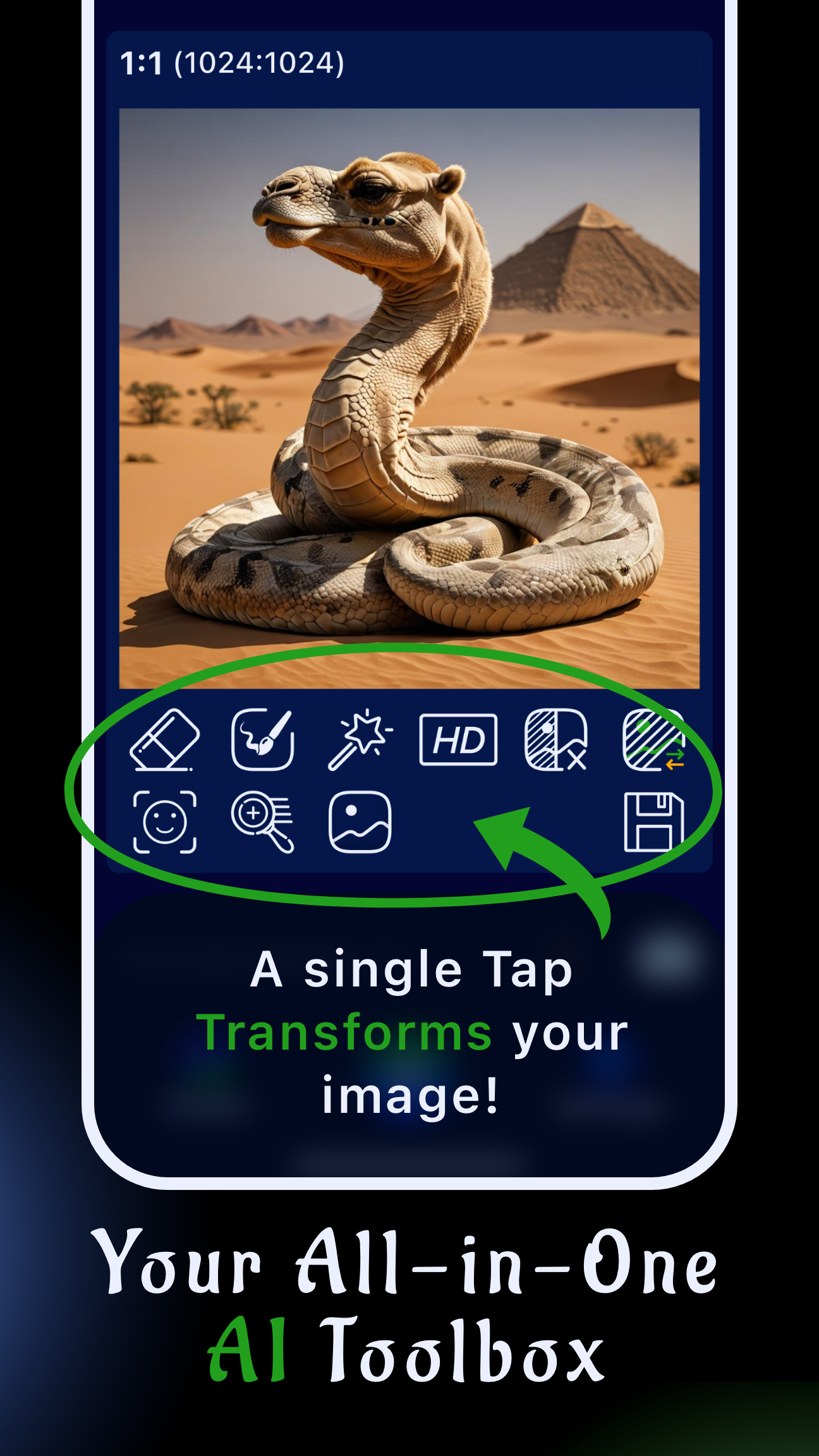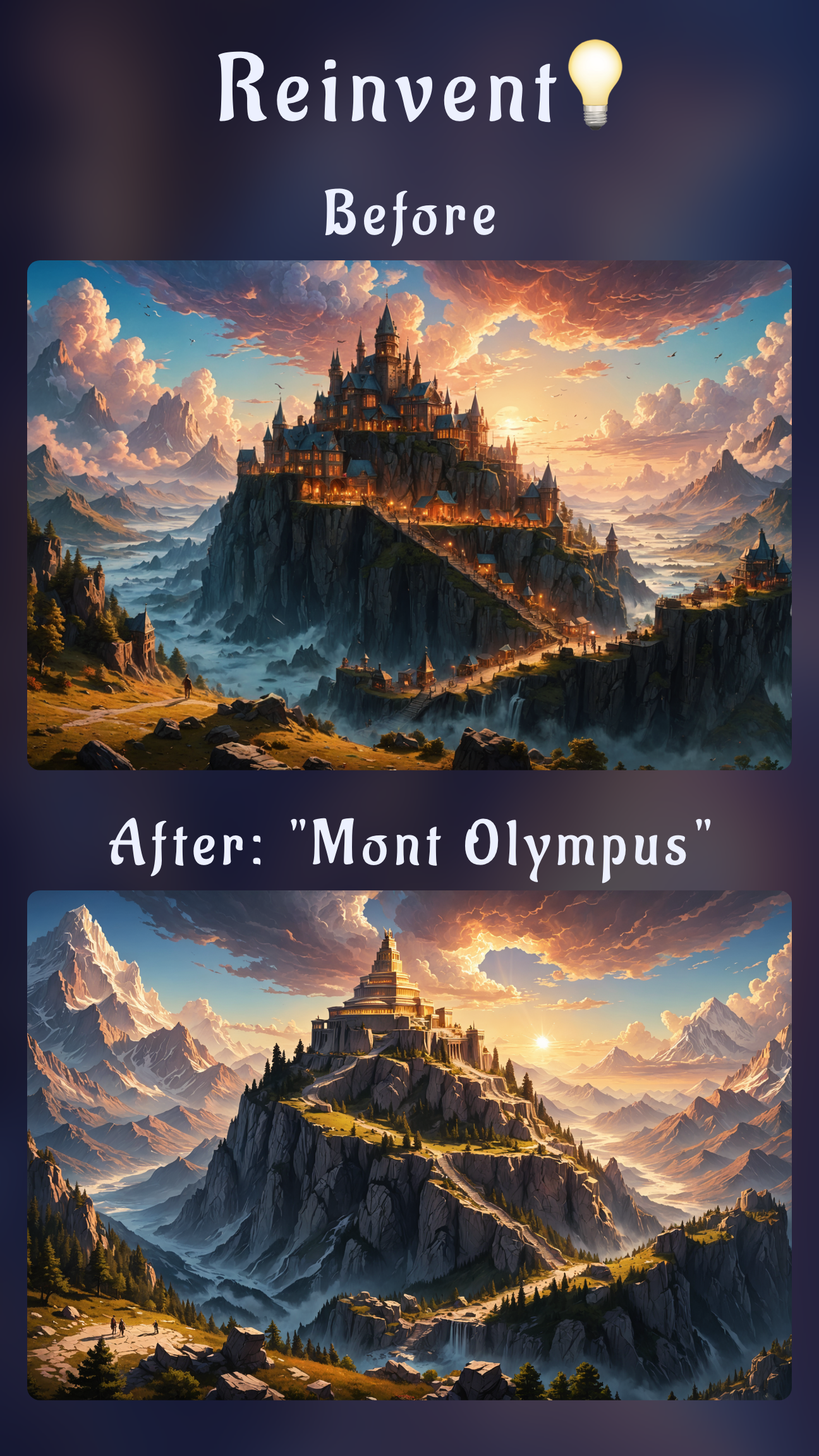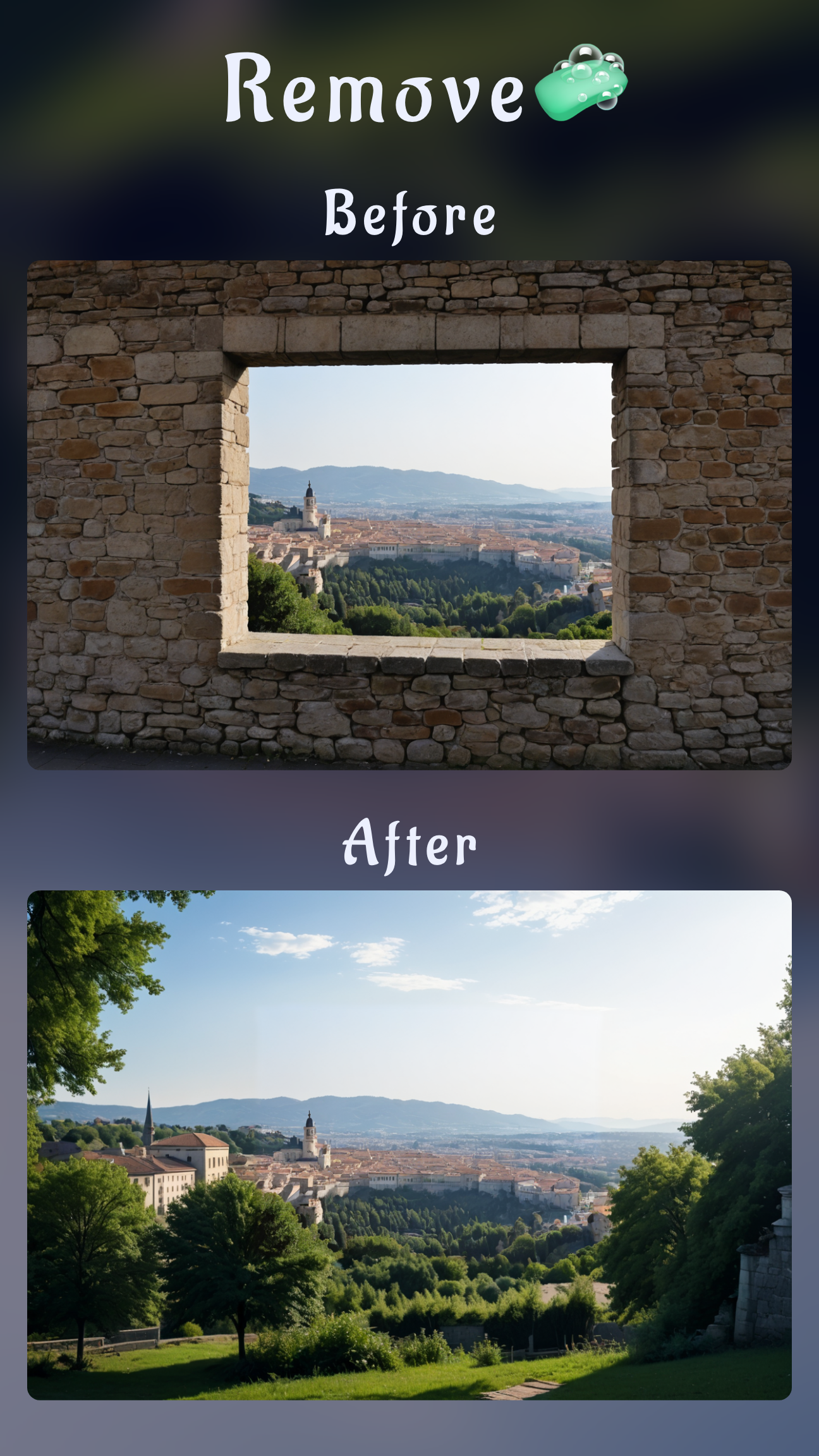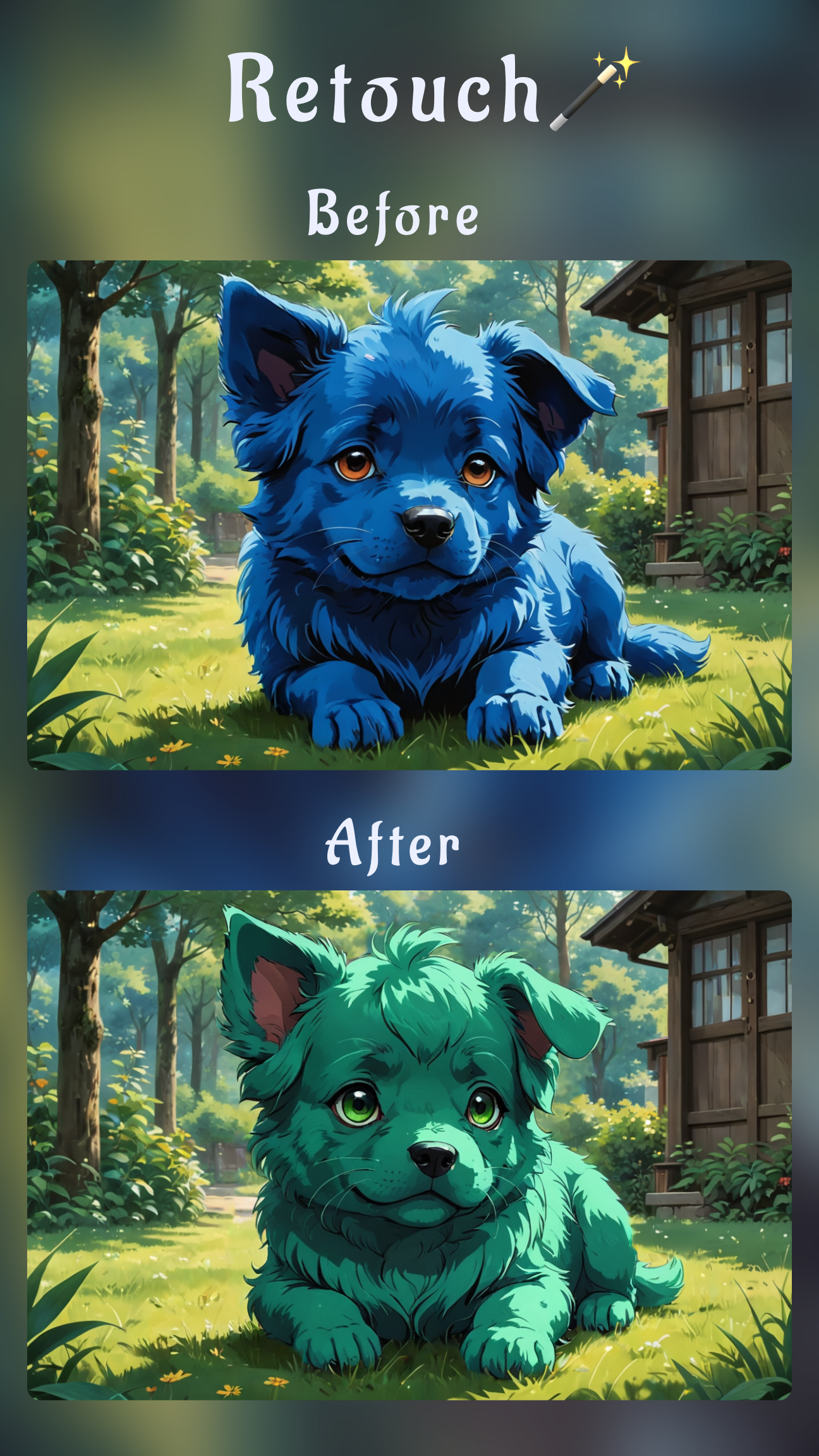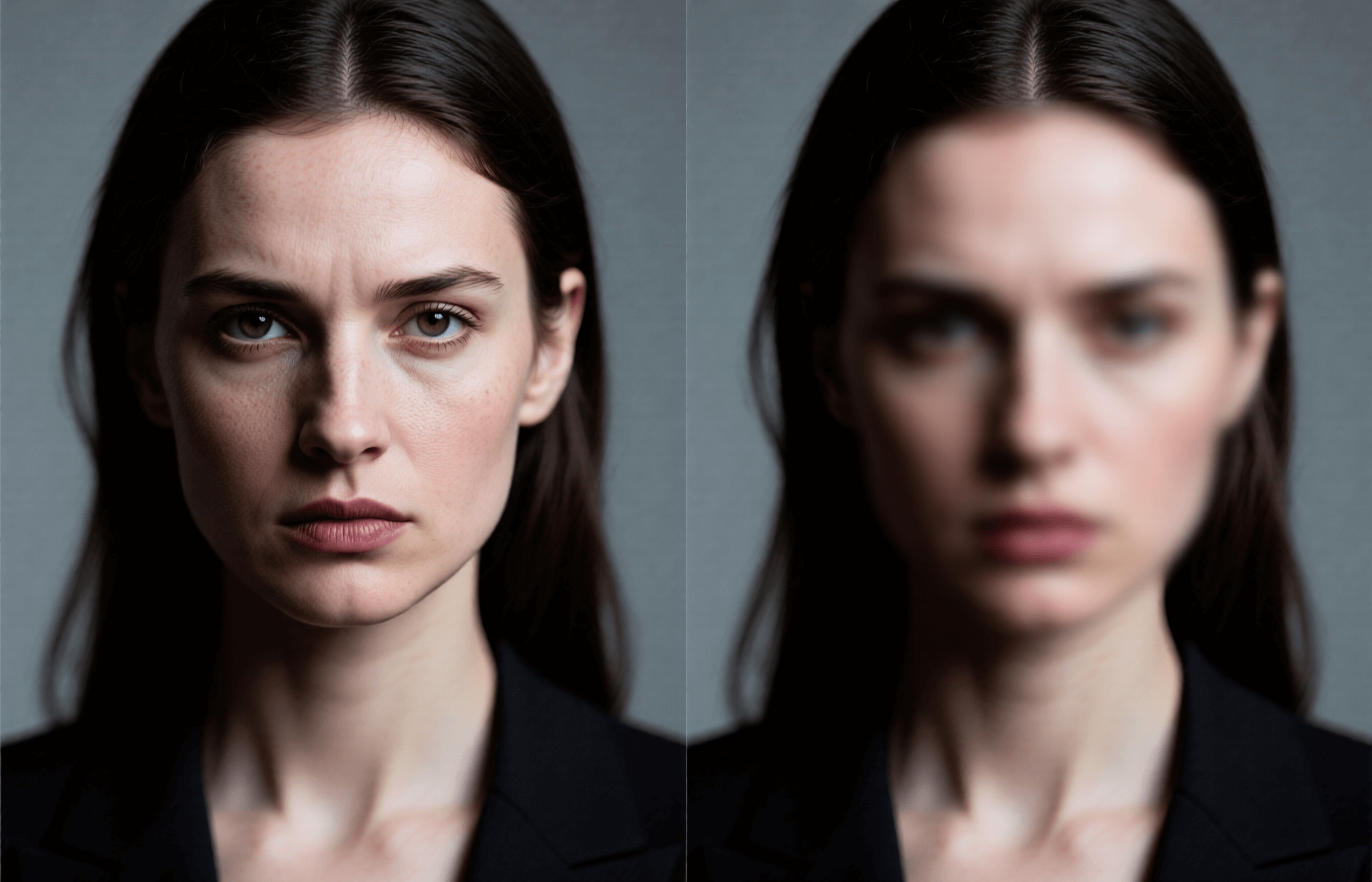
Looking for the best blur photo app to create dreamy portrait backgrounds or hide sensitive details? Whether you want a professional "bokeh" effect or need to pixelate a face for privacy, Sinaï Studio offers the most versatile AI blur tools for iPhone and Android.
While most apps only do one thing—either artistic blur OR privacy censorship—Sinaï Studio handles both. In this guide, we'll show you how to blur photo backgrounds for a DSLR look and how to blur faces or license plates securely, all in one free app.
Why use Sinaï Studio?
- Portrait Mode Effect: Create creamy background blur on any photo, even if not taken in Portrait Mode.
- Privacy Protection: Instantly pixelate faces, license plates, or documents.
- AI Precision: Use smart masking to blur exactly what you want, without ruining edges.
Part 1: How to blur photo background (Portrait Mode)
Turning a flat photo into a professional portrait is easy with the right tools. You don't need a dual-lens camera to get that soft, out-of-focus background look (bokeh). Here is how to do it with the Sinaï Studio blur photo app.
Step-by-step: Create a Bokeh Effect
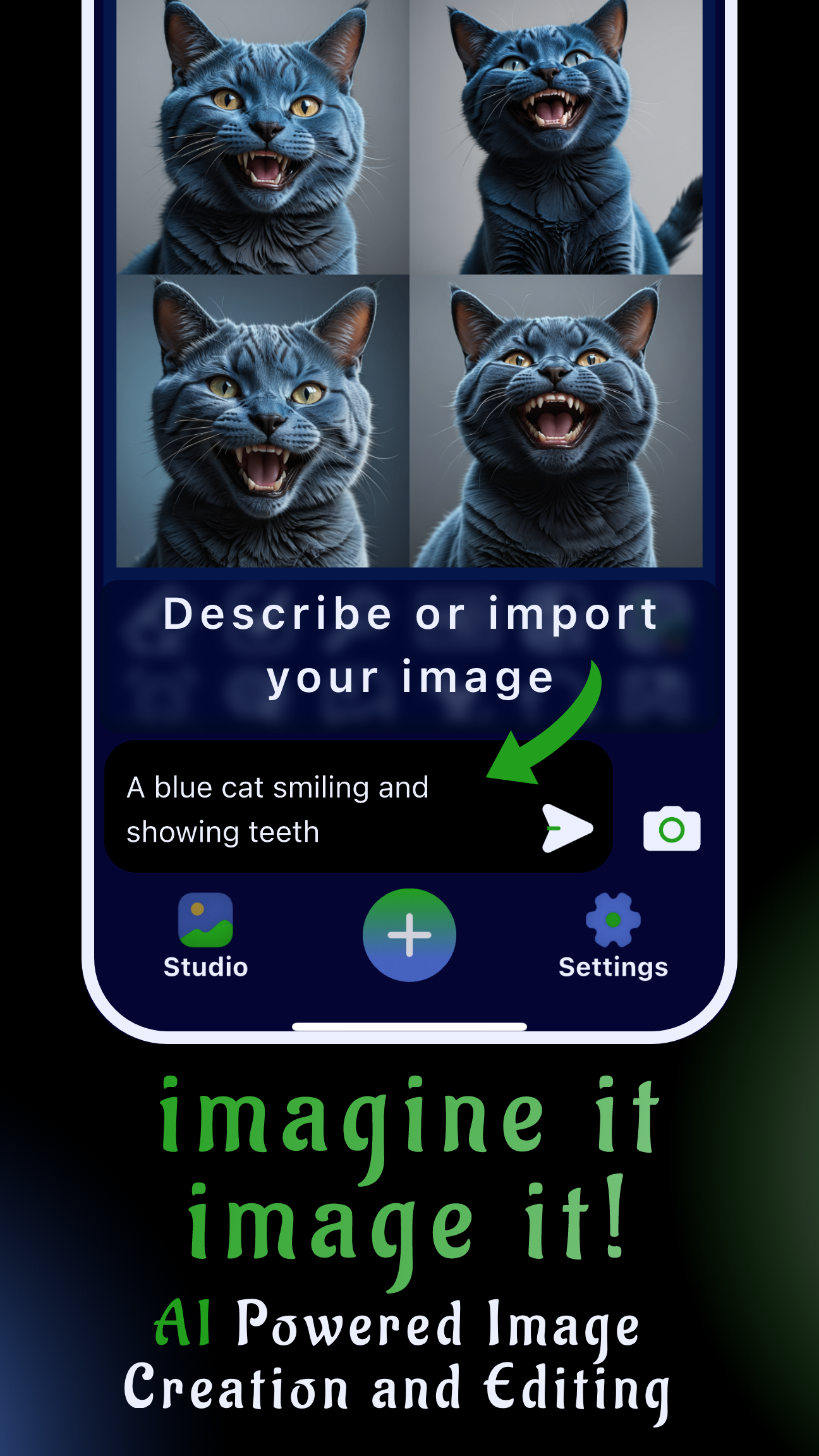
- Import and Mask: Open your photo and select the Inpainting tool. Paint over the background area you want to blur. Only rough accuracy is needed—the AI is smart.
- Prompt the AI: Type "soft blurred background", "bokeh effect", or "cinematic depth of field" and hit generate.
- Refine: The AI will replace the sharp background with a blurred version that naturally blends with your subject.
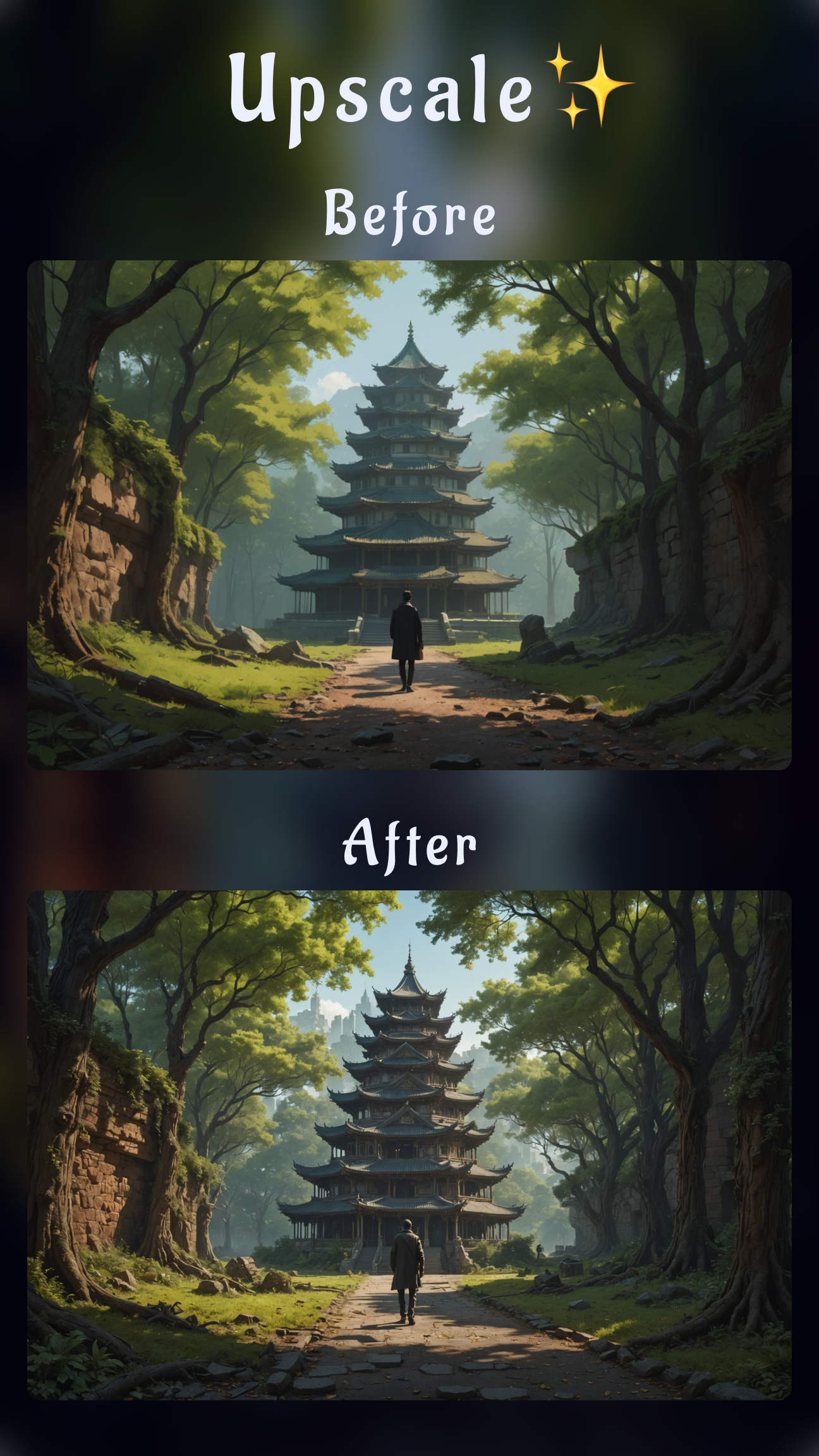
- Upscale: Use the HD Upscale feature to ensure your subject remains crisp against the soft background.
Pro Tip: You can also use this to clean up messy rooms! Prompt "blur background" to hide clutter instantly.
Part 2: How to blur faces & license plates (Privacy)
Sometimes you need the opposite of art: you need anonymity. Whether you are posting a car for sale or sharing a crowd shot, protecting privacy is crucial.
How to blur faces on iPhone & Android
- Select Face: Use the Inpainting brush to cover the face you want to hide.
- Privacy Prompt: Type "pixelate face" or "strong mosaic blur" for a secure censor effect. For a softer look, use "gaussian blur face".
- Lock it in: The AI generates a seamless edit that blocks identification but looks cleaner than a black bar.
How to blur license plates
Selling a car? Don't dox yourself. Mask the license plate and prompt "pixelate license plate". The app will scramble the numbers while keeping the car's bumper realistic. It's the standard workflow for privacy in the best blur photo app free tier.
Why Sinaï Studio is the best blur photo app
Generic apps usually just apply a filter over the whole image. Sinaï Studio uses Generative AI to understand your photo.
- Context Aware: It knows the difference between a "face" and a "background".
- Creative Freedom: You aren't stuck with one "blur" slider. You can prompt "motion blur", "radial blur", or "artistic watercolor blur".
- Free to Try: You get 25 free credits daily, making it the best free blur app for casual users.
FAQs about blurring photos
Is there a free app to blur part of a picture?
Yes. Sinaï Studio allows you to blur specific parts of a picture (backgrounds, faces, objects) for free using its daily credit system on both iOS and Android.
How do I blur the background of a photo already taken?
You don't need Portrait mode at the time of shooting. Just load the photo into Sinaï Studio, mask the background, and ask the AI to "blur background". It adds depth of field post-capture.
Can I unblur a photo if I made a mistake?
Sinaï Studio is non-destructive during your session. You can Undo any edit. If you need to fix a photo that was taken blurry, check out our guide on how to unblur a photo.