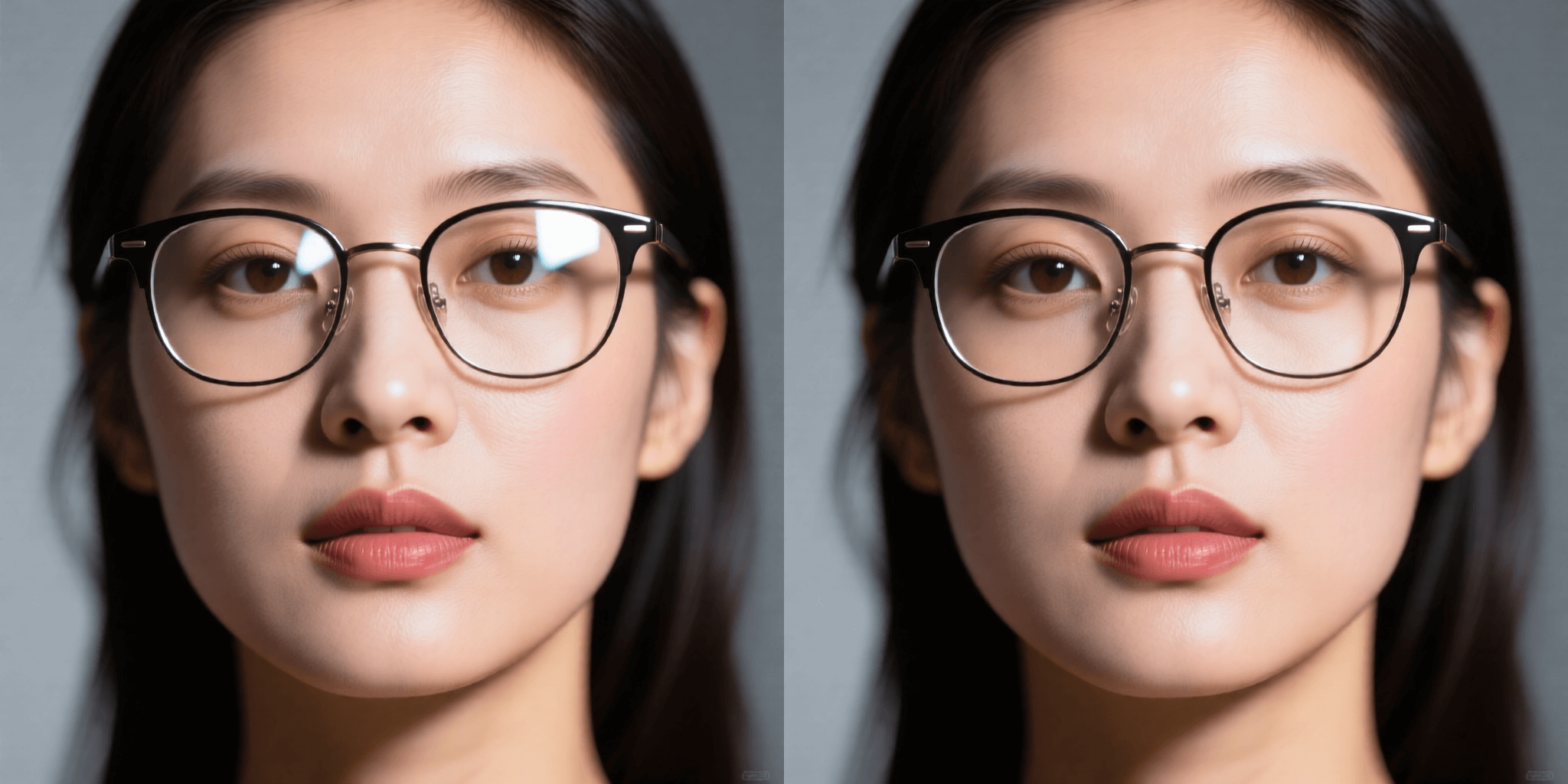
Glasses glare is one of the most common photo problems. Whether it's a green reflection from a computer screen or a white softbox streak, it blocks eye contact. In the past, you needed Photoshop. Now, you just need a dedicated remove glare from glasses app.
If you have been searching for an object remover that is sensitive enough for faces, Sinaï Studio is the solution. It uses advanced AI to remove glasses glare from photo while keeping the frame and eyelashes intact.
Why Sinaï Studio is the best app to remove glasses glare
Many apps just smudge the pixels. Sinaï Studio is different because it understands facial structure. It is improving daily to become the best app to remove glasses glare on the market:
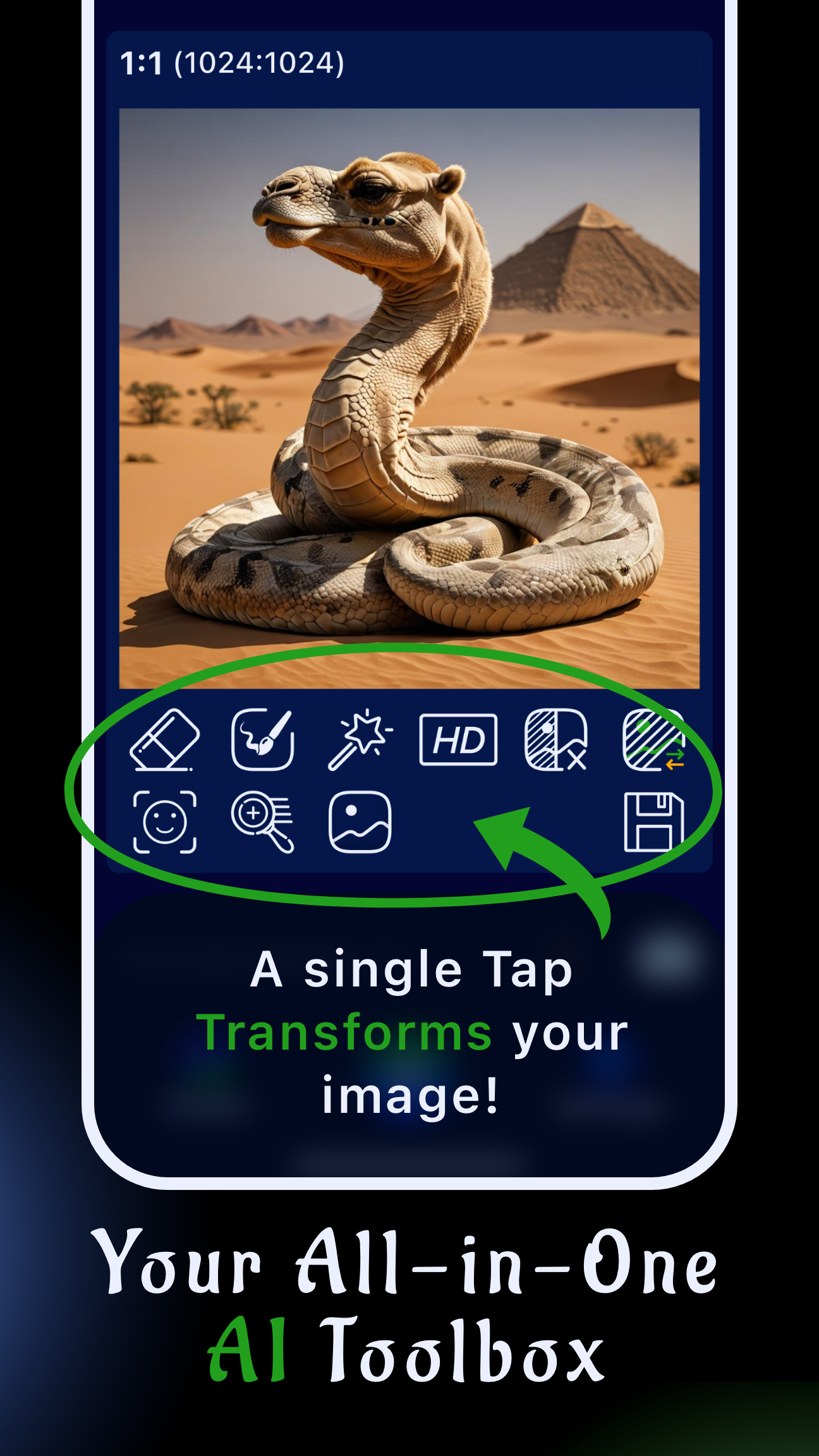
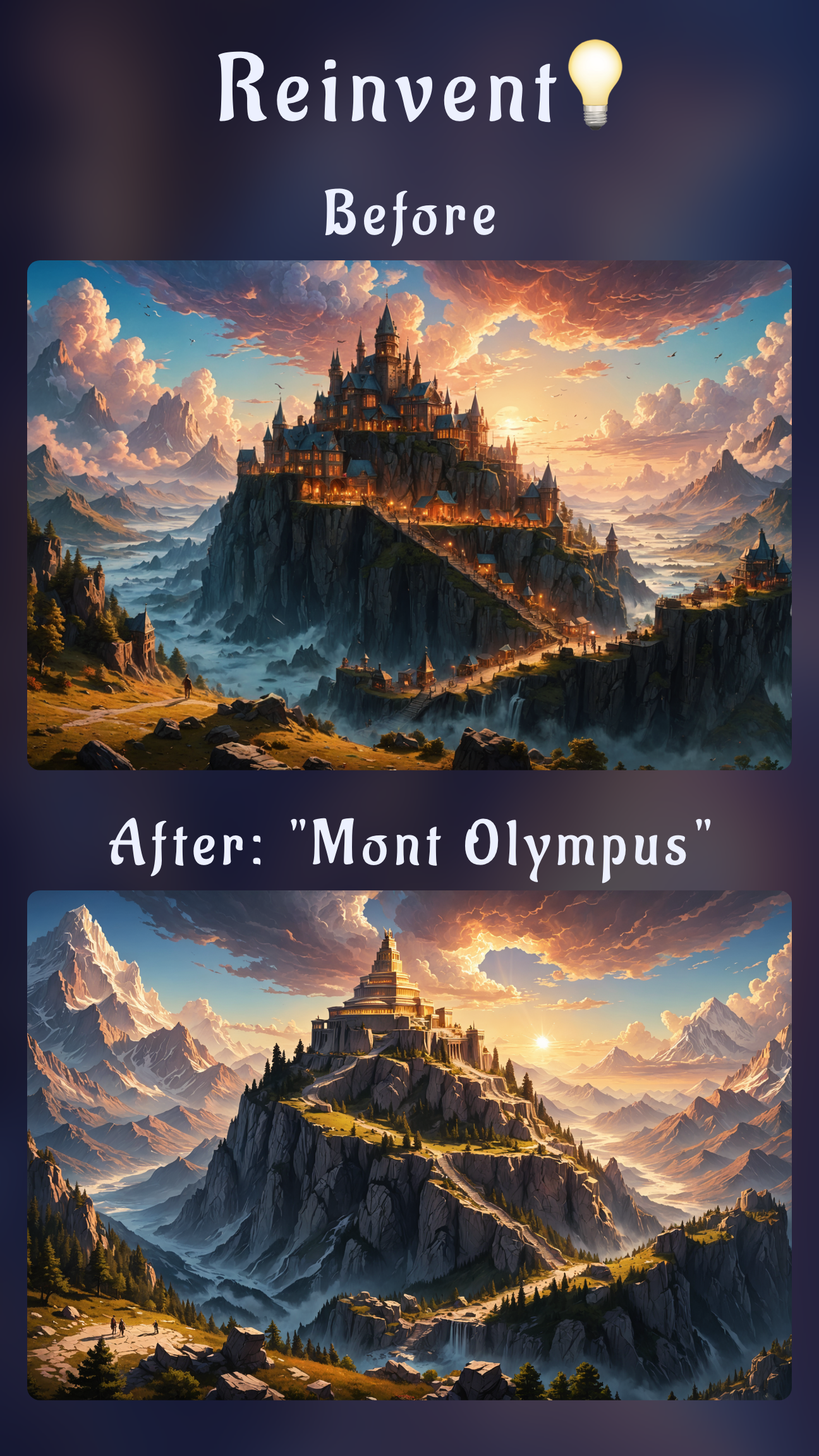
- AI Inpainting: Don't just blur the glare—regenerate the eye behind it.
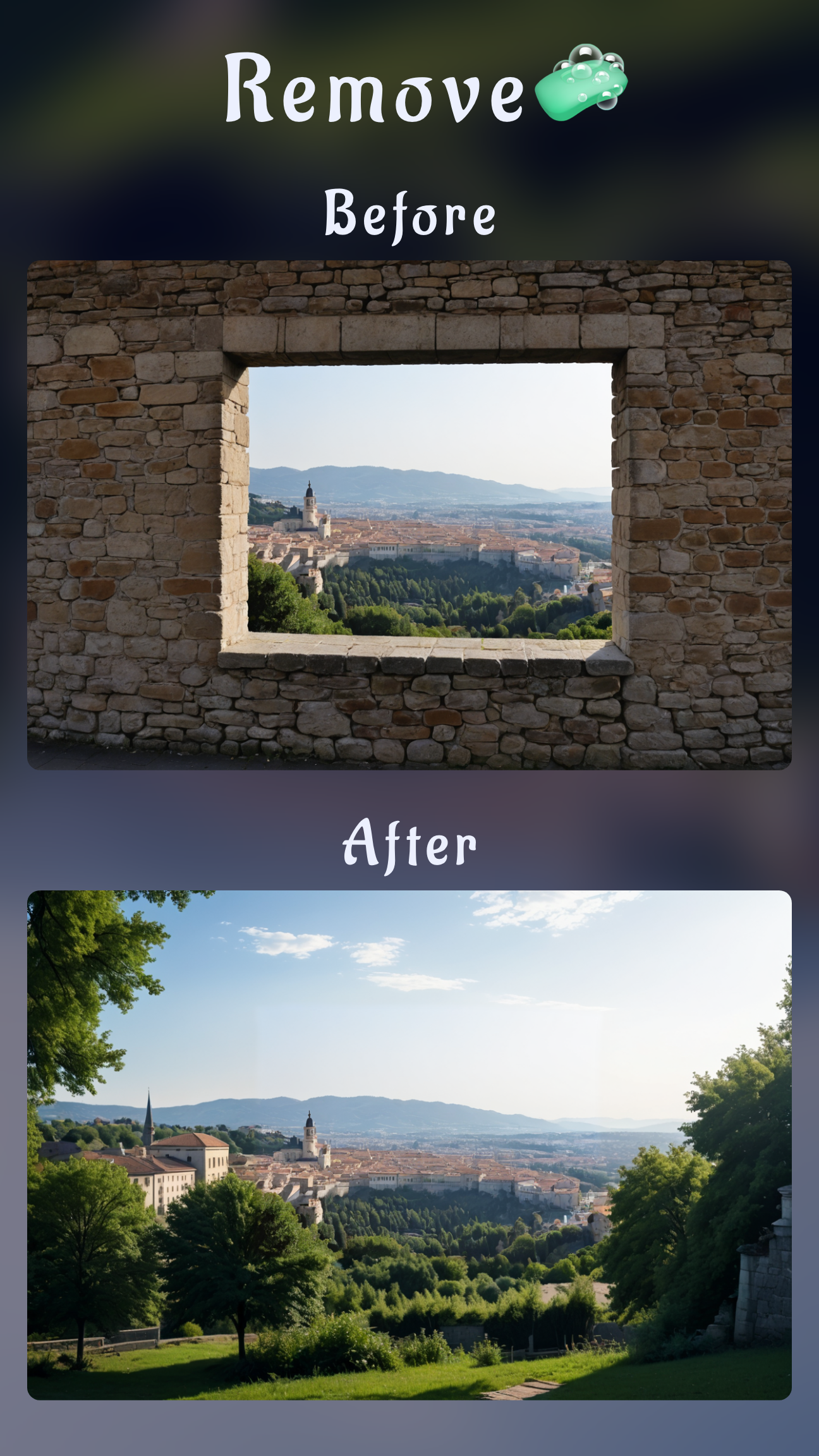
- Precision Erasing: Remove reflection from glasses app tools need to be precise. Our brush lets you target just the glint, not the rim.
- Free to use: You get 25 free generations every day, making it the perfect free app to remove glare from glasses for quick social posts or professional proofs.
How to use the remove glare from glasses app
Here is the exact workflow to fix glasses glare app style on your iPhone or Android device.
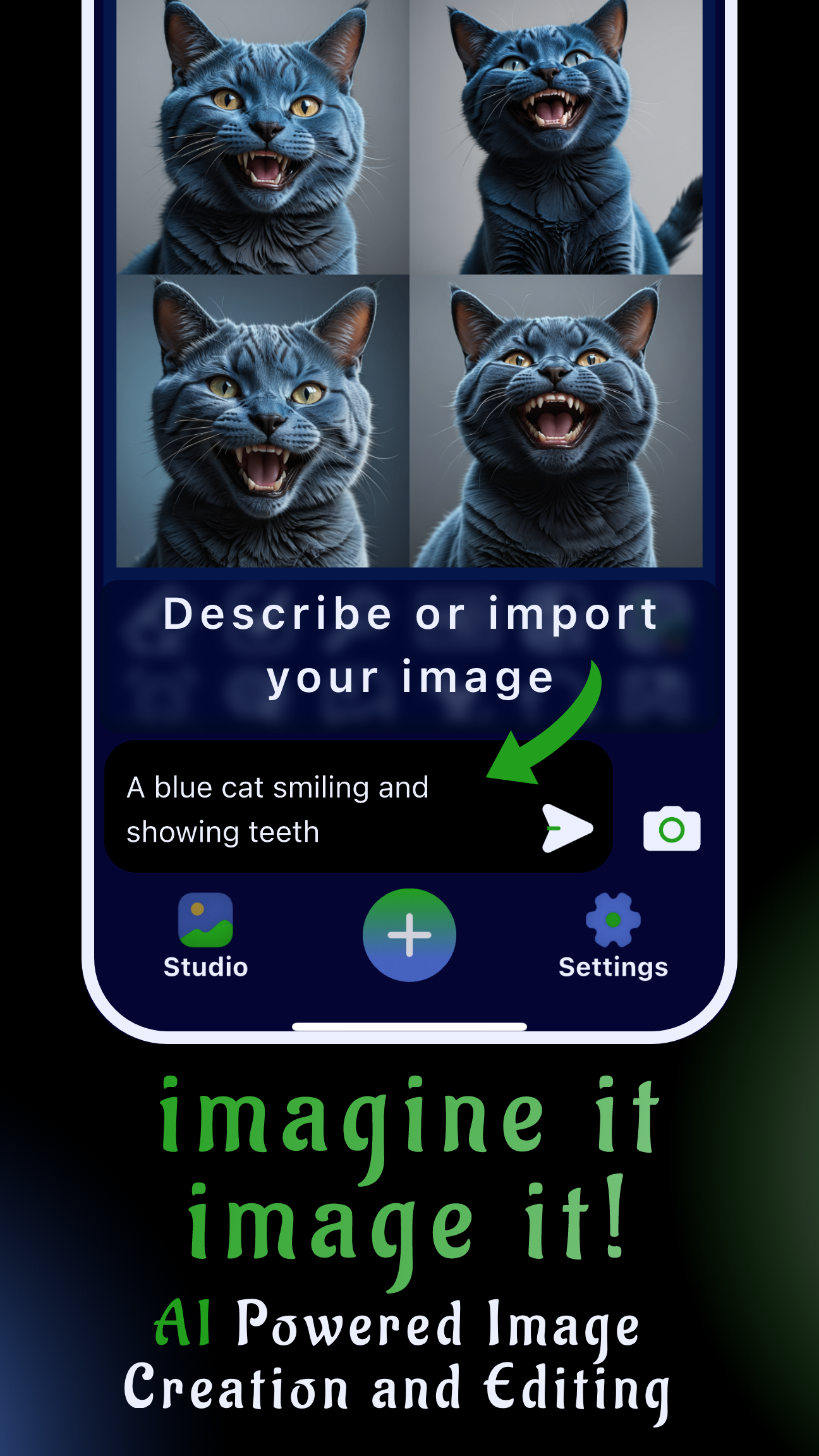
Step 1: Import your photo
Open Sinaï Studio and load your image. The app supports full resolution, so your final export will be crisp.
Step 2: Use the Inpainting Tool
For the best results, don't use the standard Eraser. Use Inpainting. Zoom in closely on the glasses.
- Paint over the white reflection or glare streak.
- Keep the mask tight—try not to paint over the frame unless necessary.
- Type a simple prompt: "remove glare from glasses" or "clear eyes".
- Tap Generate.
The AI will remove glare from glasses and fill in the missing eye detail naturally. This is what makes it a superior eyeglass glare removal app compared to basic healing tools.
Step 3: Refine the eyes
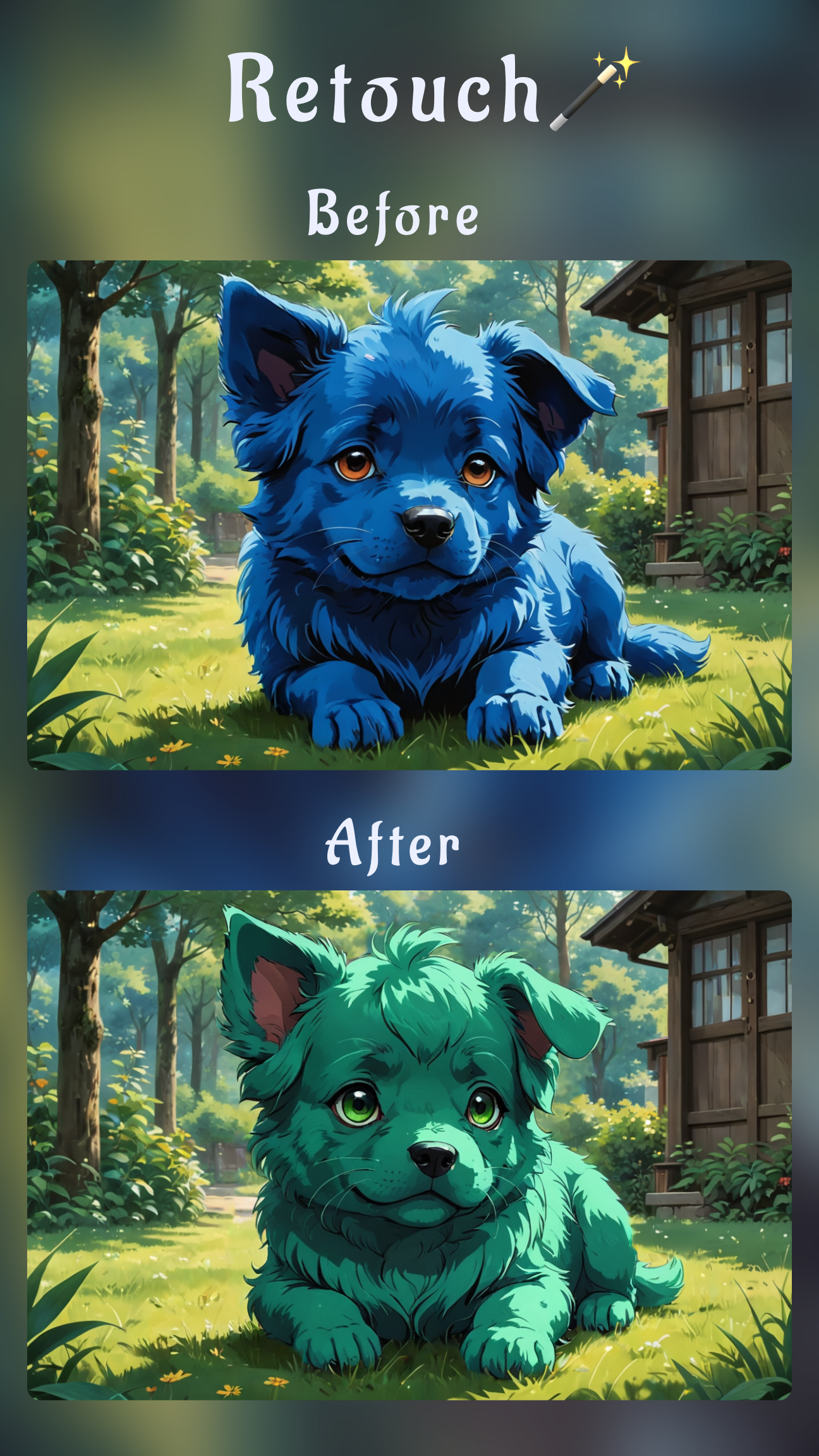
Sometimes removing the glare can make the eye look "flat". Use the Refiner tool to bring back sharpness to the pupil. You want to remove reflection from glasses but keep the life in the subject's eyes.
Tips for better results with this glare removal app
- Small strokes: If the glare covers a large part of the eye, remove it in small sections. This helps the fix glasses glare app logic understand the eye shape beneath.
- Prompt for detail: If the result is blurry, add "detailed eyes", "sharp lashes" to your prompt.
- Lighting matters: While the app is powerful, try to have your subject tilt their glasses down slightly next time to minimize the need to remove glasses glare from photo in post.
Download the best app to remove glasses glare
Ready to save your portraits? Stop deleting great shots just because of a reflection. Download Sinaï Studio today and see why it is the top-rated remove glare from glasses app for creators.