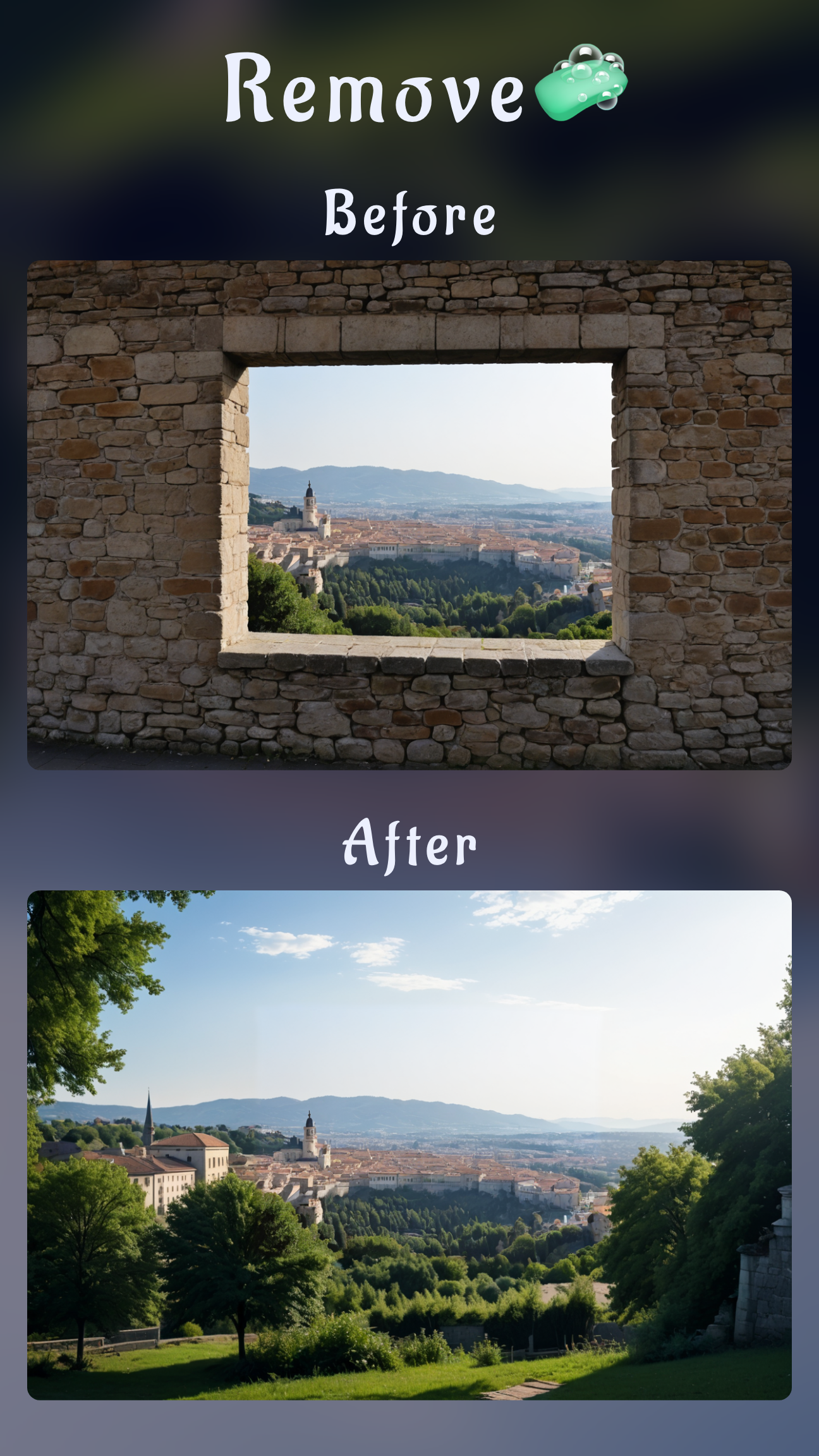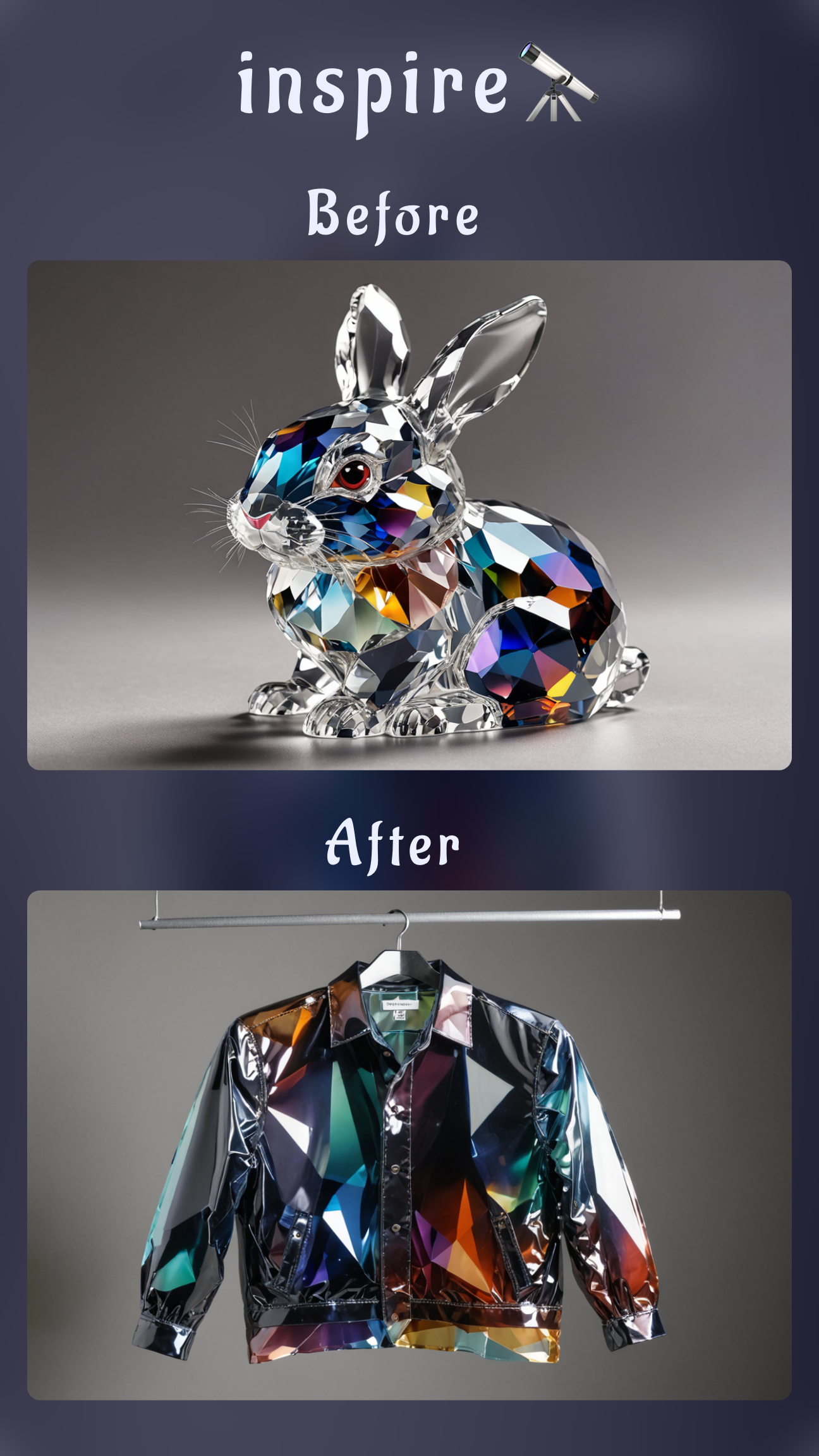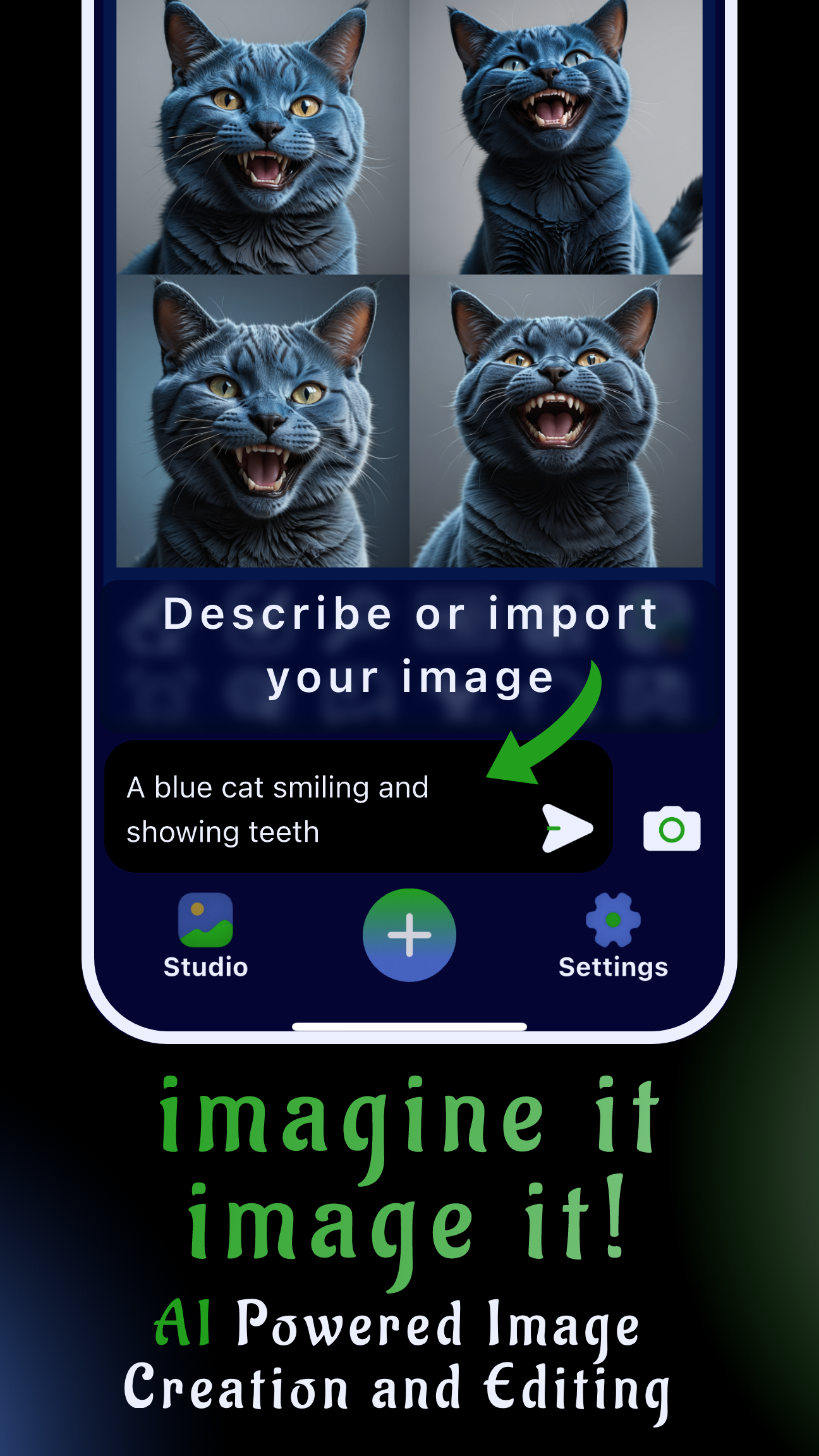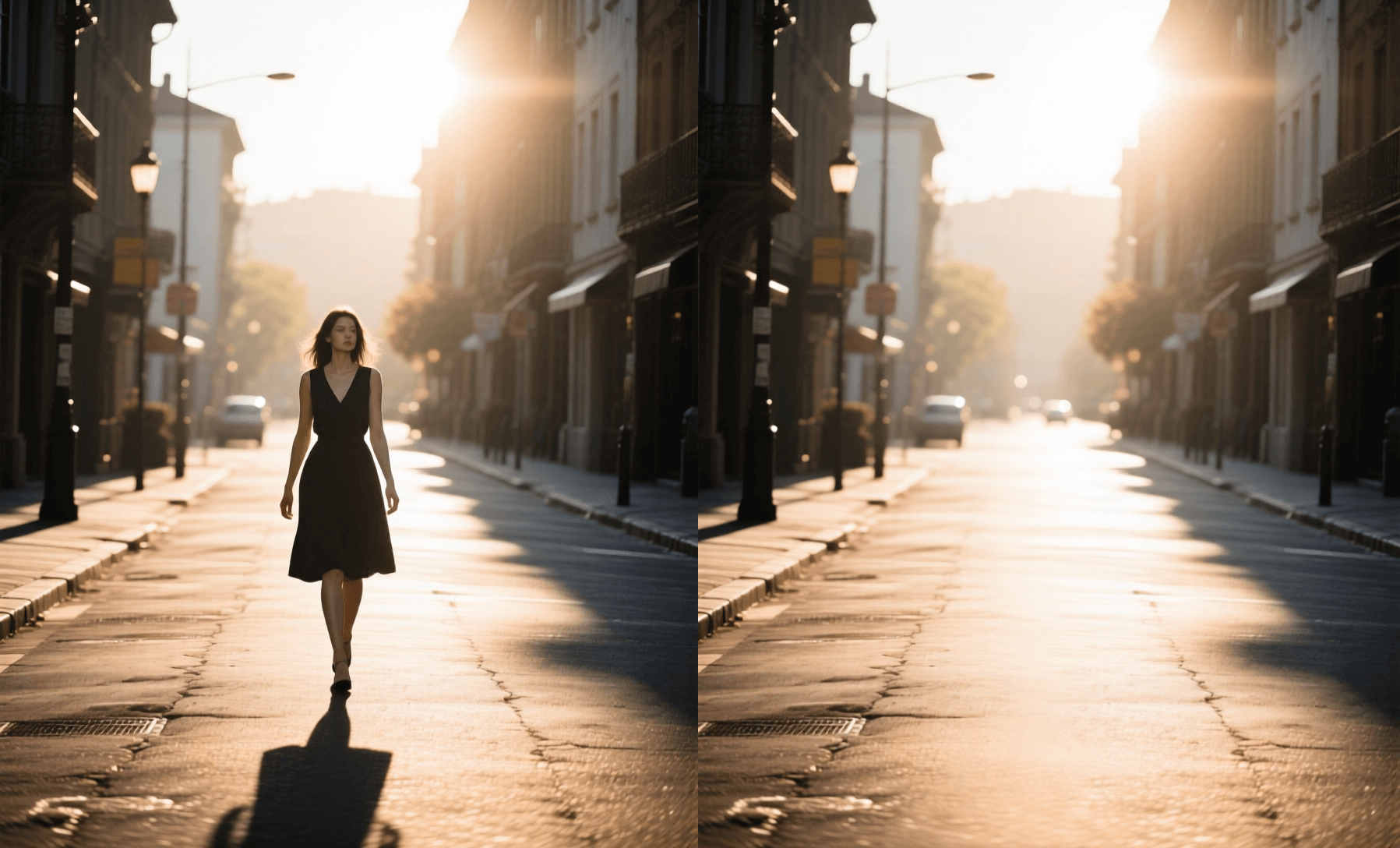
Finding the right remove person from photo app can be frustrating when you just want a clean shot without needing a desktop computer. Whether it's a photobomber in a travel selfie or a stranger in the background of a product shot, Sinaï Studio offers a powerful mobile solution. Our AI editor combines smart erasing, inpainting, and generative fill, making it the best way to delete person from photo quickly on iPhone or Android.
Professionals and creators use Sinaï Studio because it doesn't just "smudge" pixels—it rebuilds the background intelligently. You get pro-level retouching power in your pocket, allowing you to erase person from photo with high-quality results in seconds.
What you’ll get
- A complete guide on how to remove people from pictures using AI tools.
- Step-by-step instructions for iPhone and Android users.
- Tips to ensure natural-looking backgrounds (no blurry artifacts).
- How to export high-definition results for free.
Why use an AI app to remove people from pictures?
In the past, if you wanted to delete person from photo, you needed expensive software like Photoshop and hours of patience. Today, AI handles the heavy lifting. A dedicated remove person from photo app like Sinaï Studio understands the context of your image.
Instead of manually cloning pixels, the AI analyzes the surroundings—texture, lighting, and depth—to fill in the gap where the person was. This means you can remove people from photos seamlessly, even with complex backgrounds like brick walls, foliage, or water.
How to delete person from photo with Sinaï Studio
Sinaï Studio is designed for speed and precision. Here is your go-to workflow to erase person from photo using the mobile app.
Remove person from photo iPhone with the Eraser tool
- Open Sinaï Studio on your iPhone and import the image.
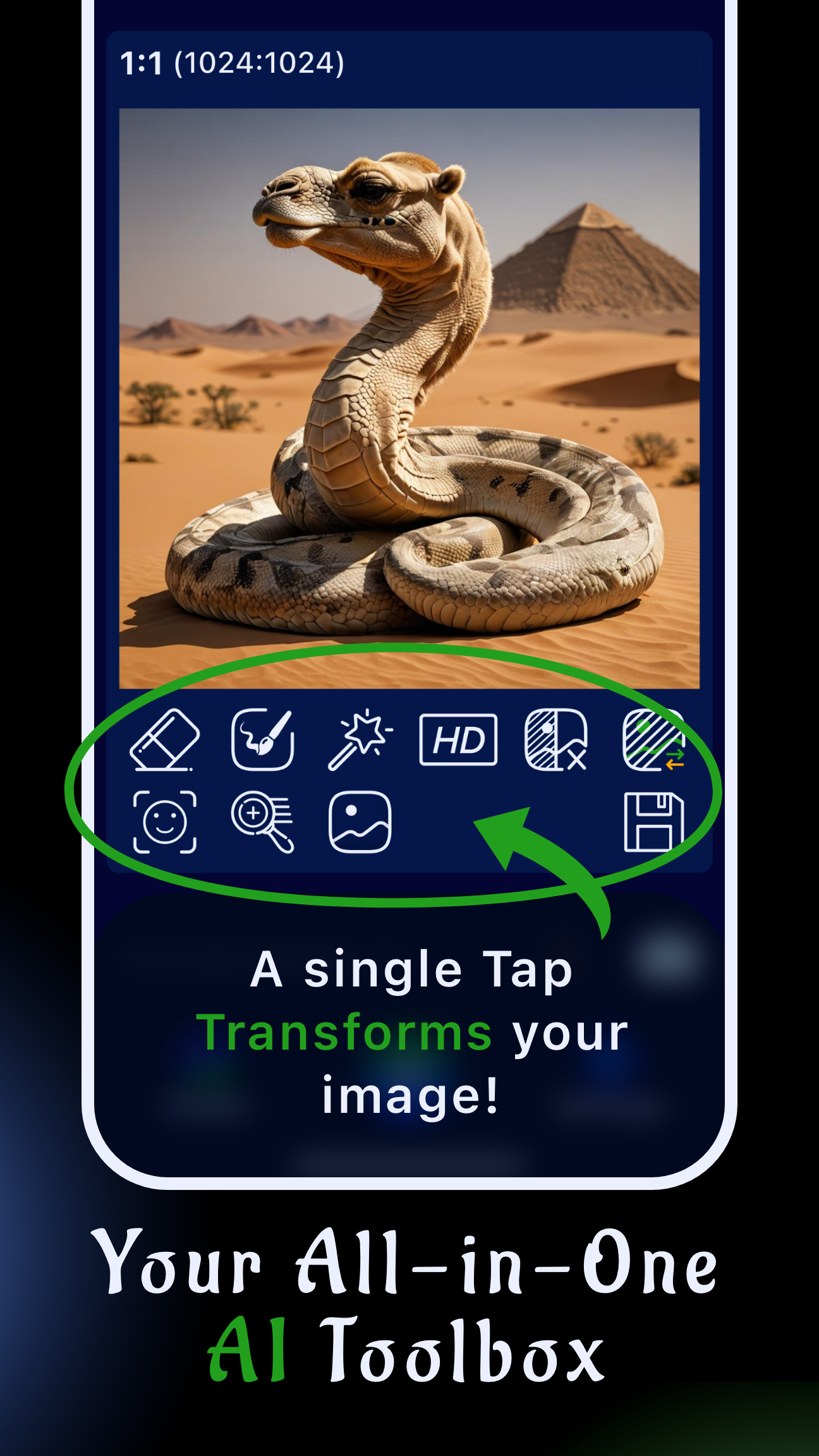
- Tap the Object Removal (Eraser) tool.
- Zoom in on the distraction. The precision brush lets you accurately paint over the person.
- Tap the checkmark ✅. The AI will instantly delete person from photo and fill the space.
- If there are small leftovers, use the Refiner or simply undo and tap again for a different variation.
- Save your clean image.
Remove person from photo Android with Inpainting touch-ups
- The workflow is identical on Android. Import your photo and use the Eraser.
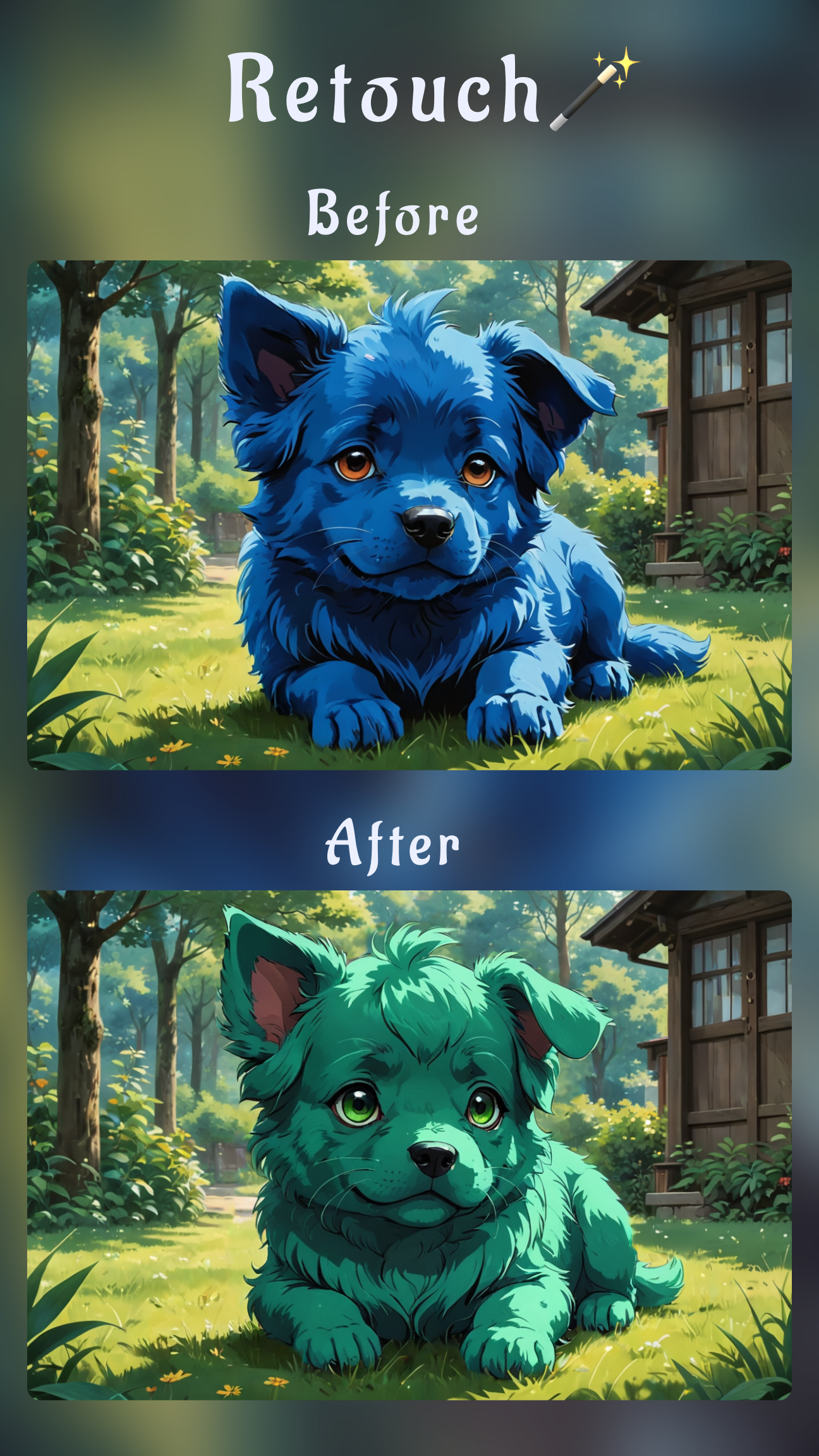
- For complex areas (like a person standing in front of a patterned fence), switch to the Inpainting tool.
- Mask the area and type a prompt like "restore wooden fence" or "empty beach background".
- This forces the AI to regenerate the background with specific details, ensuring a perfect "invisible" edit.
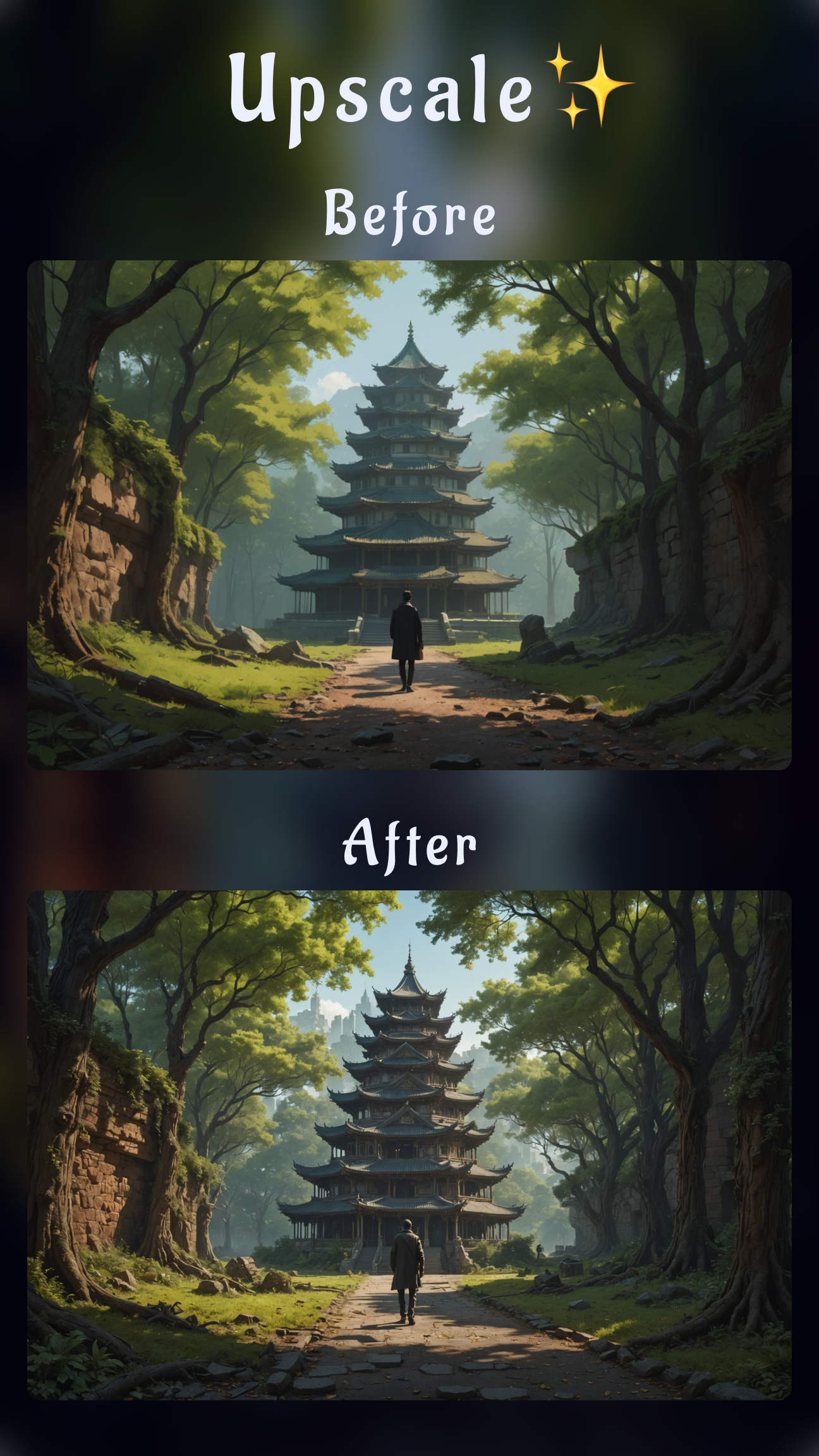
- Use HD Upscale before exporting to ensure the edited area is sharp and crisp.
Remove person from photo online free? Why the app is better
You might search for remove person from photo online free tools, but they often come with catch-22s: low-resolution downloads, aggressive watermarks, or slow upload speeds. Sinaï Studio processes edits locally on your device or via high-speed cloud inference without compressing your final output. You get professional quality without being tied to a browser.
Inpainting tricks to remove unwanted person from photo seamlessly
Sometimes, simply erasing isn't enough. If you remove people from pictures and the background looks blurry, use these Inpainting tips:
- Prompt the background: Tell the AI what should be there. "Clean pavement," "blue sky," or "forest trees" helps the model generate realistic textures.
- Work in steps: If you are removing a crowd, delete person from photo one by one rather than all at once. This gives the AI more context to work with.
- Feather the edges: Use a softer brush size to blend the edited area with the original photo grain.
Use AI variations to remove people from photo AI style
For difficult shots where the background is too cluttered, try the Image-to-Image Edit feature. Instead of just erasing, you can regenerate the scene.
- Select your photo and tap Image-to-Image Edit.
- Enter a prompt like "Empty city street, sunny day, professional photography".
- The AI will keep the composition but generate a version without the people.
- This is a powerful way to remove people from photos when traditional erasing leaves weird artifacts.
Remove unwanted objects from photos free with Sinaï Studio extras
The power to erase person from photo applies to any unwanted object. Power lines, trash cans, watermarks, or text can all be removed using the same tools.
- SceneShift: Don't just remove the person—change the entire location. Swap a busy street for a quiet beach.
- FaceBlend: If you are swapping people instead of removing them, use FaceBlend to insert a new face seamlessly.
FAQs
Common questions about using a remove person from photo app.
Is there an app to remove a person from a picture for free?
Yes. Sinaï Studio offers a generous free tier that lets you use the Eraser and Inpainting tools to remove people from photos. You get daily credits to export clean, watermark-free images.
What is the best app to remove a person from a photo?
We believe Sinaï Studio is the best app to remove a person from a photo because it combines simple erasing with advanced generative AI. Unlike basic retouch tools, it rebuilds the background so your photo looks real, not smudged.
How do I remove a person from a picture without Photoshop?
You don't need Photoshop. accurate object removal is now native to mobile AI. Just download Sinaï Studio, select the Eraser tool, and swipe over the person you want to remove. It's faster and easier than learning desktop software.