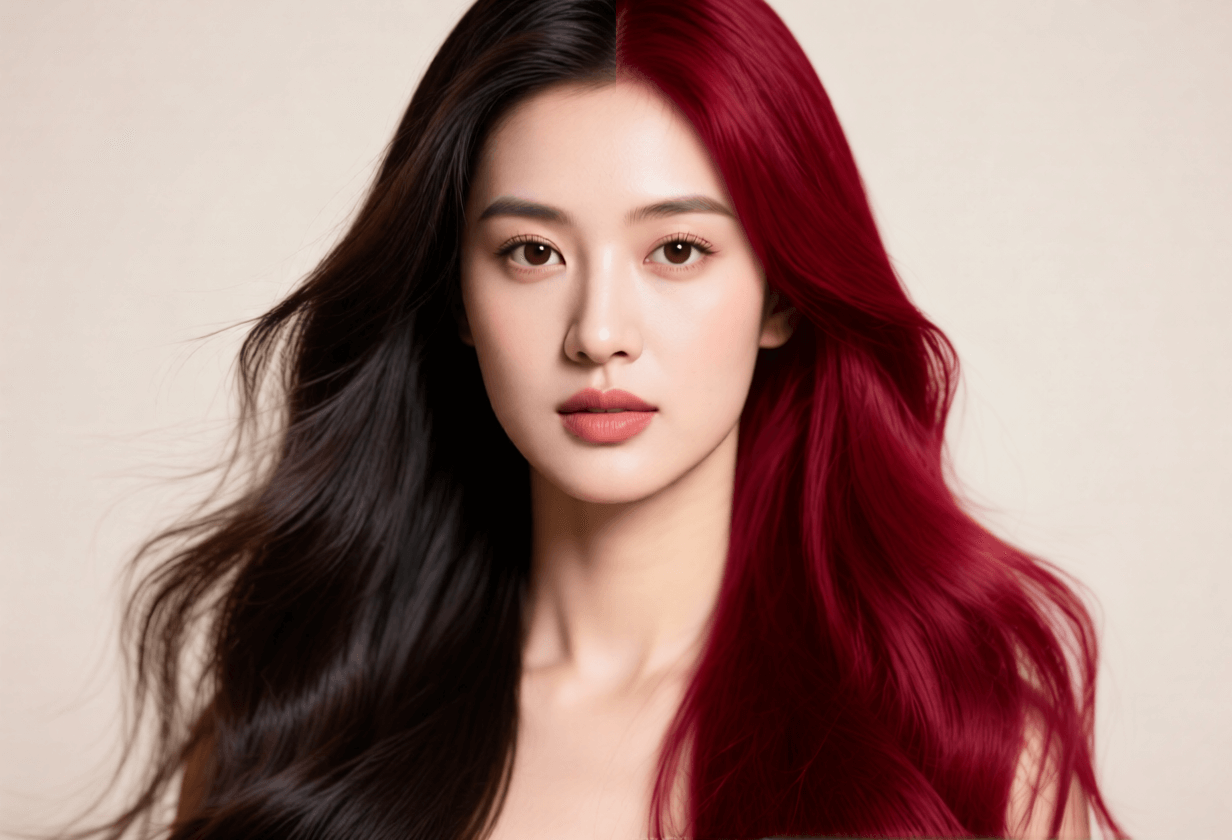
Wondering how to change hair color in photo without risking a salon experiment? Sinaï Studio on iOS and Android lets you preview fresh shades on the exact portrait you plan to share, so clients, stylists, or followers can sign off before anything touches your hair.
The mobile AI editor combines prompt-based recoloring, precise masking, and HD exports in one workflow. You can test subtle toners, metallic fantasy looks, or grey transitions, all while keeping every edit synced across devices for fast approvals.
What you’ll get
- Three mobile workflows to try on natural, pastel, and editorial hair colors in minutes.
- Prompt formulas and masking tactics for believable roots, shine, and textured strands.
- Export-ready tips to share moodboards with stylists, teams, or ecommerce clients instantly.
Sinaï Studio is the AI hair color changer built for designers
Sinaï Studio was designed for creative teams who need salon-grade mockups without a desktop setup. The AI hair color changer keeps every project organized so you can iterate looks, collect feedback, and move from experiment to final export on the same device.
- Creative control on touchscreens: Inpainting, Refiner, and Detailer respect curls, baby hairs, and highlights while you paint with your fingertip.
- Context-aware lighting: SceneShift and tone adjustments rebalance ambient light so the new shade never feels pasted on.
- Workflow depth: Combine hair recolors with the AI hairstyle workflow to pitch full character or campaign transformations.
Change hair color app essentials for realistic textures
Before adopting any change hair color app, check that it mirrors real-world color science and supports pro handoffs. Sinaï Studio hits the key criteria:
- Mask intelligence: Automatic hair detection gives you a starting mask, then manual brushes let you refine edges along wispy strands.
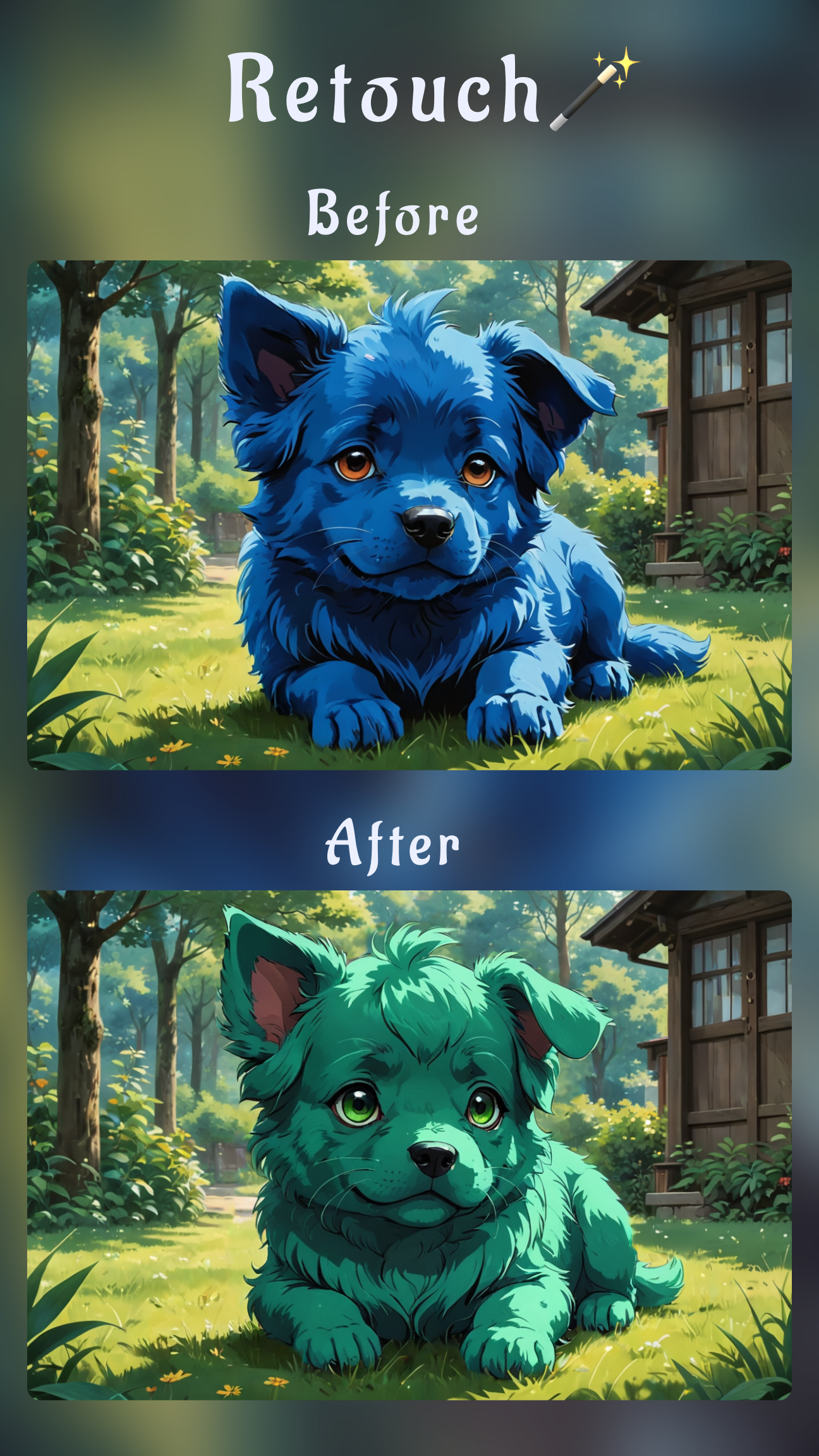
- Prompt + slider pairing: Describe tones in everyday language—“cool ash blonde with smoky roots,” “deep auburn with copper ribbons”—then dial intensity for balayage, ombré, or full-bleed looks.
- Reusable presets: Save favorite prompts and color palettes so seasonal refreshes stay consistent across shoots.
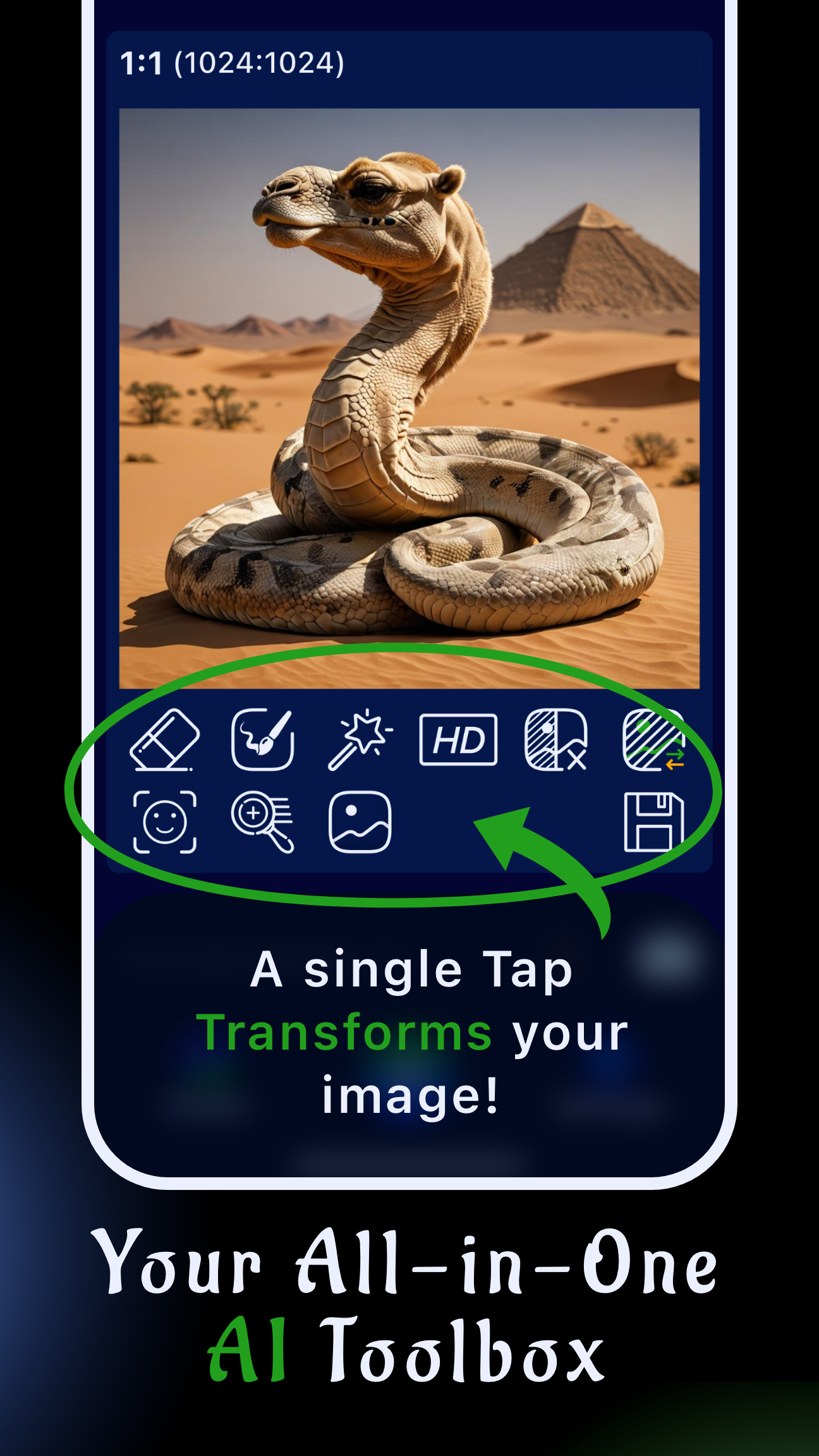
- Team-friendly exports: HD Upscale and background tools deliver polished JPEG or PNG previews straight from your phone.
Tutorial: Change hair color in picture using Sinaï Studio
Use this workflow whenever you need precise, realistic hair recolors. It follows the same playbook our in-house artists rely on for client visuals.
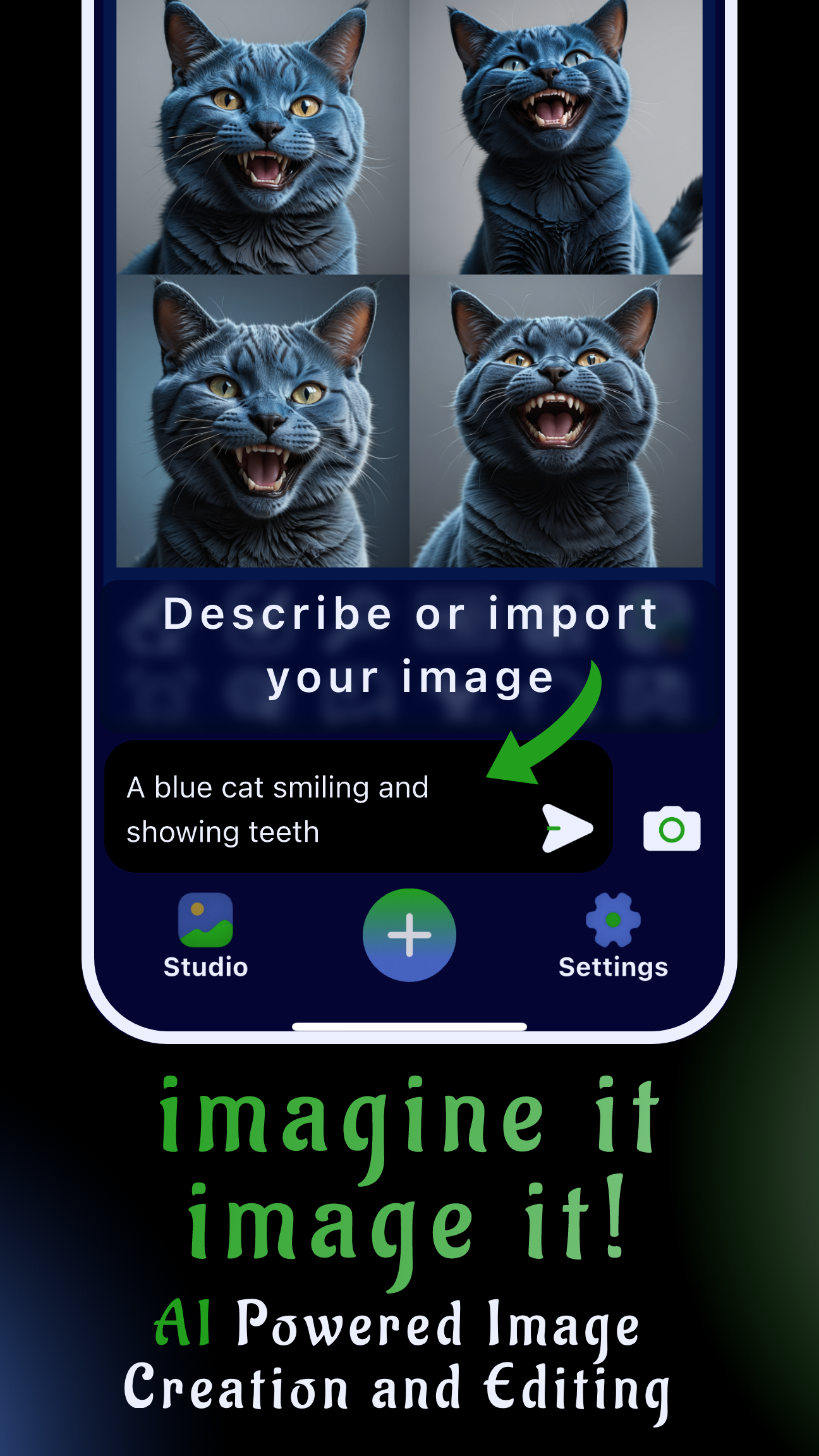
- Import the photo. Open Sinaï Studio, tap the camera icon to add your image, and duplicate it so you can toggle before and after.
- Prep the mask. Choose Inpainting, zoom in, and brush over all the hair you want to transform, keeping strokes inside the hairline to avoid skin spill.
- Prompt the shade. Write a short description such as “rich espresso brown with subtle copper lights” or “icy platinum bob with shadow roots” and send.
- Balance the blend. Run Refiner on flyaways, then adjust temperature or brightness so the recolor matches ambient light.
- Finalize and export. Tap HD Upscale, save the project, and export a JPEG or PNG to share with stylists or clients.
Method 1: Repaint strands with Inpainting
- Mask the sections you want to recolor—full head, bangs, or selected layers.
- Layer prompts: start with the base tone, then rerun Inpainting on the crown for highlights or lowlights.
- Lower the strength slider to 60–70% when you need natural brunette or blonde variations; push to 90% for bold fantasy shades.
Method 2: Clean edges with Refiner for a natural blend
- Select Refiner after your first pass and target the hairline, baby hairs, and flyaways.
- Prompt micro-adjustments such as “soften transitions” or “add warm copper sheen” to avoid flat overlays.
- Finish by checking the hair at 1:1 zoom and zoomed out to confirm the blend works in both views.
Method 3: Reset the entire look with Image-to-Image Edit
- Tap Edit (Image-to-Image) to generate alternative compositions using the same pose.
- Reference existing prompts or style notes so the new hair color matches brand palettes or campaign art direction.
- Use the Save button to keep winning variations, then stack them in a board alongside your object color change workflow for cohesive outfits.
Virtual hair color try on ideas before you book the salon
Virtual hair color try on sessions are perfect for stakeholder buy-in and personal experiments. Mix and match these scenarios:
- Preview grey transitions: Blend silver at the temples while keeping natural roots, so you can plan a gradual grow-out.
- Campaign storyboarding: Align hair tones with product packaging, then match props or outfits using the background swap tutorial.
- Influencer content: Cycle seasonal palettes—pumpkin spice copper, festival pastels, or deep winter violet—for fresh posts without dye damage.
Make the most of Sinaï Studio’s hair color changer app free tier
The free plan covers up to 25 edits or generations every day, giving you ample room to explore combinations before you upgrade.
- Batch experiments: Queue multiple prompts in one session, saving each variation with the Save icon for later review.
- Organize references: Add stylist notes and inspiration images inside project comments to keep everyone aligned.
- Upscale selectively: Reserve HD Upscale for finals while keeping draft concepts in standard resolution to stretch your daily allowance.
Pro tips to try on different hair colors without flat overlays
These finishing touches keep even bold looks believable when you try on different hair colors in Sinaï Studio.
- Balance makeup and wardrobe: Pair your recolor with the AI makeup workflow so lips and brows complement the new tone.
- Check multiple lighting moods: Use SceneShift to simulate daylight, studio, or neon settings and confirm the color holds up.
- Blend saturation: Toggle the hair mask opacity if the hue looks harsh—this mimics how a hair color filter app feathers pigment in real life.
FAQs
Can I change hair color in photo online without downloading anything?
Browser tools can give a quick preview, but Sinaï Studio keeps masks precise, runs offline once installed, and stores your edits privately—ideal when client assets or personal photos shouldn’t touch the web.
Which hair color try on app keeps curls and highlights intact?
Sinaï Studio combines automatic hair detection with manual Inpainting and Refiner passes, so textured curls, coils, and blonde streaks stay crisp instead of turning into flat blocks of color.
How do I change hair color in photo free on mobile?
Install Sinaï Studio, import your photo, paint the hair area with Inpainting, describe your desired shade, then export the HD result. The free plan includes 25 edits per day, enough to test multiple palettes before upgrading.