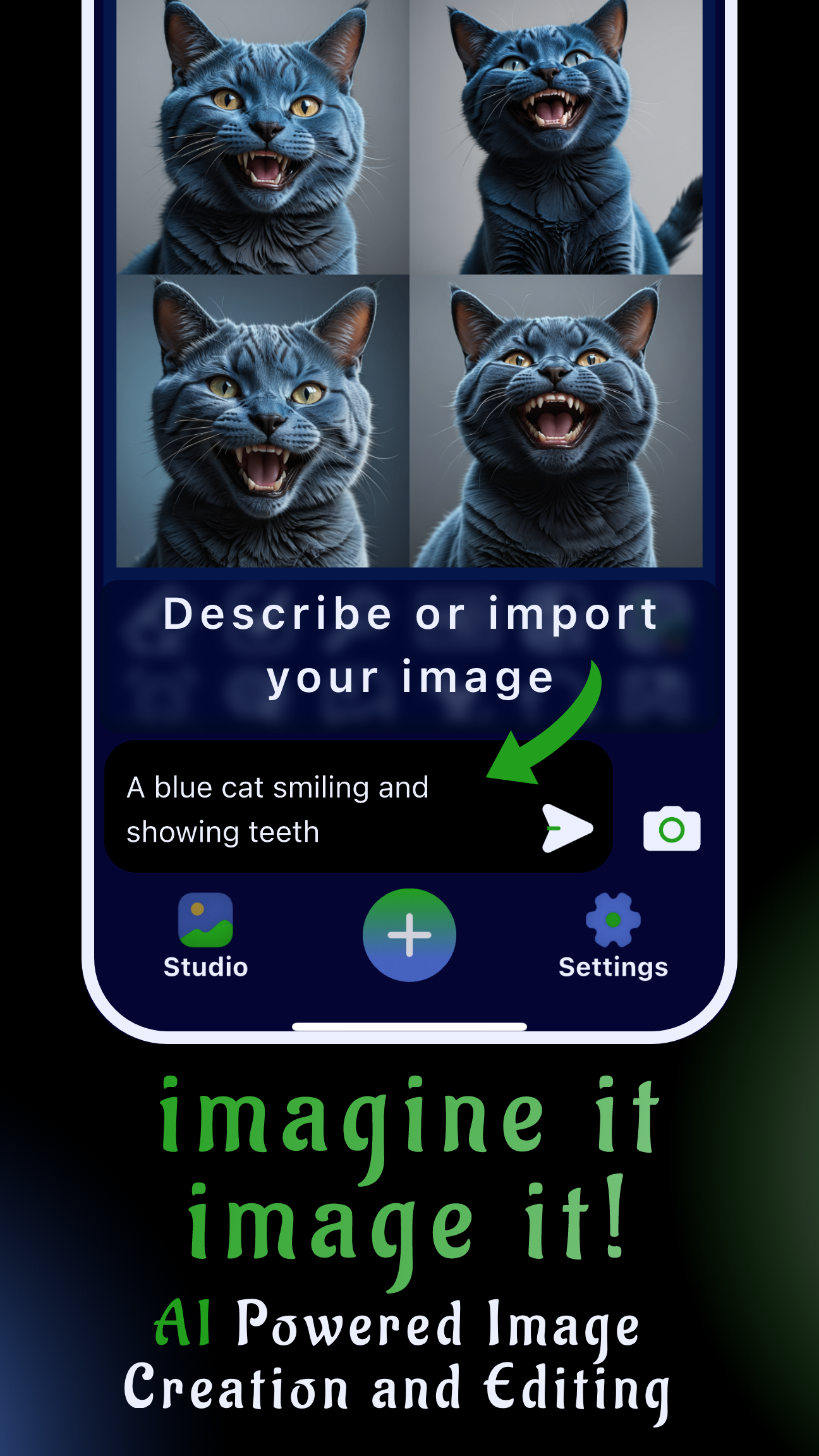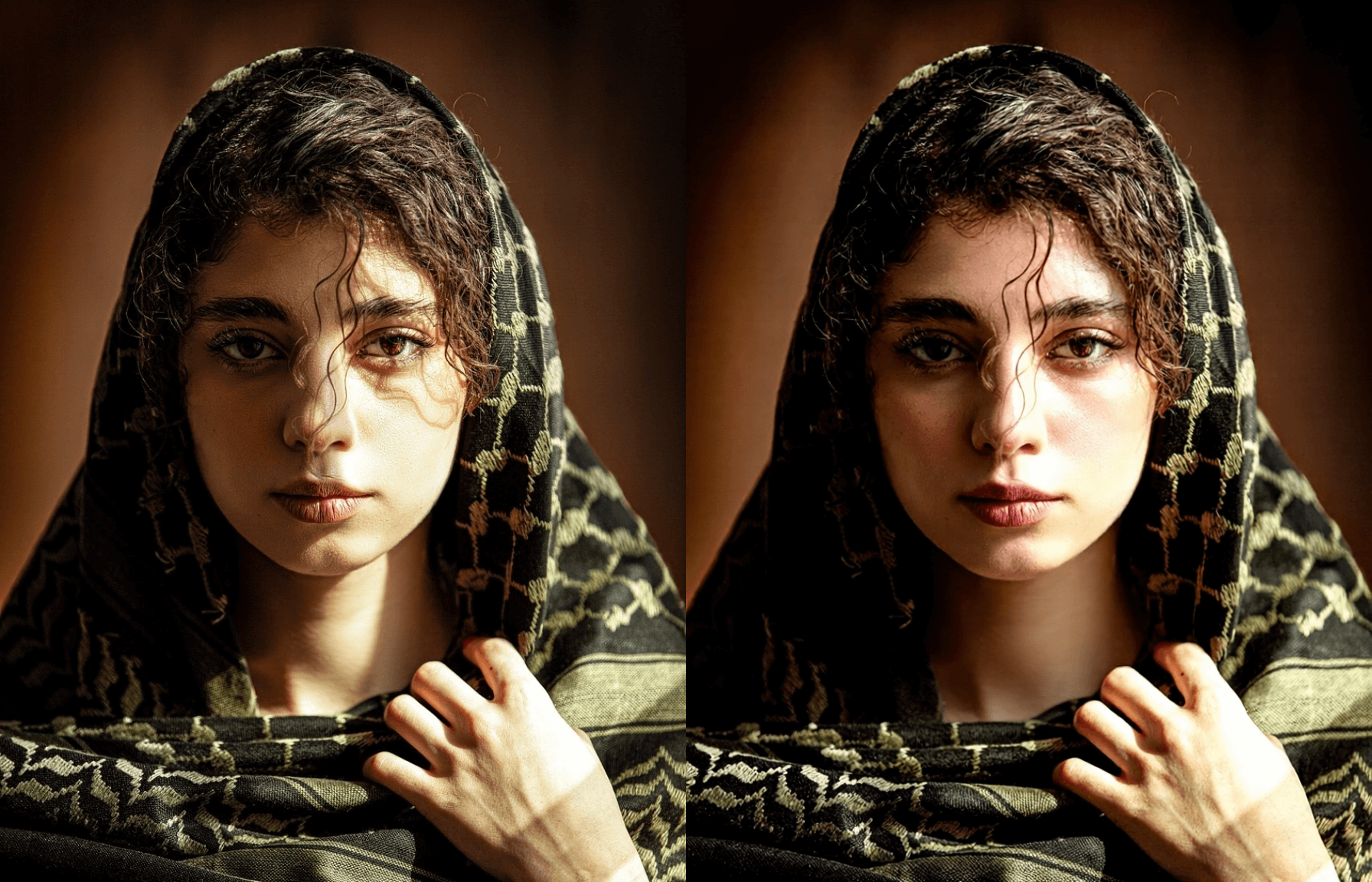
Harsh lighting can ruin a portrait, but you can learn how to get rid of shadows on face in pictures without opening desktop software. Sinaï Studio’s mobile AI editor fixes under-eye hollows, nose shadows, and uneven jawlines directly on your phone, keeping retouching fast enough for social posts, client approvals, and marketplace listings.
This guide covers why shadows appear, the fastest way to prep Sinaï Studio as your go-to app to fix shadows on face, and a repeatable workflow that keeps skin texture intact. You’ll also get quick alternatives if you still rely on Lightroom layers and preventative tips for your next shoot.
What you’ll get
- A mobile workflow to remove harsh face shadows in minutes.
- Step-by-step prompts for Sinaï Studio’s Inpainting, Refiner, and SceneShift tools.
- Prevention tactics so every HD export keeps consistent, natural lighting.
Why harsh face shadows show up in mobile photos
Smartphone sensors compress dynamic range, so contrast spikes whenever direct sun, ring lights, or neon signs hit one side of a face. That creates deep bands along the nose, cheeks, and jawline that are difficult to soften in post. Before you fix harsh lighting in portraits, understanding the cause helps you pick the right Sinaï Studio tool.
- Overhead or side lighting: Ceiling fixtures and window light drop steep shadows under eyes and chins. Move the subject closer to the window or add a handheld diffuser to soften harsh shadows in photos before you even open the app.
- Mixed color temperatures: Warm lamps plus cool daylight confuse auto white balance, exaggerating shadow edges. Use Sinaï Studio’s SceneShift lighting presets to balance tones once you import the image.
- Underexposed backgrounds: When the background is dark, phone cameras underexpose skin. After editing, consider the selective color approach from our color accent workflow to even out lighting on face photo compositions.
Remove shadows from face photo app: set up Sinaï Studio
Once you install the latest build, Sinaï Studio becomes the fastest remove shadows from face photo app on iOS and Android. Make sure these settings are ready before you begin any retouch:
- Download and sign in: Grab the App Store or Google Play release so the app to fix shadows on face stays synced across devices.
- Enable HD Upscale and natural light presets: In Settings, toggle HD exports and select the “Soft daylight” SceneShift profile so you can preview balanced light while editing.
- Create a Face Retouch workspace: Save a project template with reference portraits, preferred prompts, and LUT-style background swatches. Pair it with the virtual makeup workflow when you need to polish complexion after removing shadows.
Step-by-step: How to edit out shadows on face with Sinaï Studio
Follow this process whenever you need to remove harsh shadows from face photo shoots. It keeps edits realistic and avoids plastic-looking skin while you even out lighting on face photo details.
- Import and duplicate. Share the portrait into Sinaï Studio, duplicate it inside the project, and lock the original for reference.
- Mask the shadow zones. Select Inpainting, brush over dark areas beneath the eyes, across the nose bridge, and under the jaw, and confirm the mask.
- Prompt for soft fill light. In the text field, describe the correction: “soft daylight across cheeks, gentle fill light, natural skin texture, no glare.” The AI will lighten only the masked region.
- Blend with Refiner. Switch to Refiner and set the strength to 20–30%. This smooths transitions so you don’t see banding between corrected and untouched skin.
- Add global balance. If the forehead or hairline still feels uneven, open SceneShift and apply the “Studio fill” preset at 40% to soften the entire portrait.
- Finalize exports. Upscale to HD, save a JPEG for social platforms, and keep a PNG backup for further edits.
Target under-eye shadows in seconds
For stubborn hollows, zoom to 200% and use a small Inpainting brush. Prompt with “lift under-eye shadows photo, keep lashes sharp, preserve concealer texture.” Follow with Refiner at 15% so you remove shadows under eyes photo areas without flattening facial features.
Blend the whole portrait with SceneShift lighting
SceneShift adds fill light across the frame without overexposing highlights. Try the “Soft box” preset at low intensity, then nudge exposure by +5. If you still see contrast differences, duplicate the layer and run Image-to-Image Edit with “soft window lighting, gentle highlight roll-off.” This combination softens harsh shadows in photos while respecting your original mood.
Photoshop or Lightroom? Fast fixes before you export
Sometimes clients still request PSD files. Use Sinaï Studio for the heavy lifting, then send a polished base for finishing touches:
- Remove shadows from face in Photoshop: Export a PNG, open it in Photoshop, and if needed add a low-opacity Curves mask to fine-tune specific areas. Because Sinaï already balanced contrast, you spend seconds adjusting rather than building Dodge and Burn layers from scratch.
- How to fix shadows on face in Lightroom: Import the Sinaï export, then use the Masking panel’s People > Face Skin detection. Lift Shadows +20 and reduce Texture -5 for a silky finish while your main lighting edits still come from the mobile workflow.
Pro tips to prevent harsh shadows in future portraits
A few habits during capture will minimize cleanup time and help you fix harsh lighting in portraits before it happens.
- Change angles quickly: Rotate the subject 10–15 degrees toward the light source. For creative overhead ideas, pull inspiration from our top-down angle guide.
- Carry a bounce card: A folded white reflector or even a sheet of paper fills chin and cheek shadows instantly.
- Mix light sources carefully: Match Kelvin values so tungsten lamps don’t clash with daylight, which keeps shadow edges neutral.
- Capture insurance frames: Shoot one frame at +0.7 EV to protect skin detail, then blend it later if you need to even out lighting on face photo edits.
FAQs about removing face shadows in pictures
How do you get rid of shadows on your face in pictures?
Import the image into Sinaï Studio, mask the problem areas with Inpainting, and prompt for “soft daylight” or “balanced fill light.” Blend the result with Refiner and finish with SceneShift if you need global adjustments.
What app removes shadows from face photos?
Sinaï Studio removes facial shadows in seconds, combining Inpainting, SceneShift, and Refiner so you don’t have to stack manual layers. Because it runs on iOS and Android, you can retouch on-set or while commuting.
Can I fix harsh portrait lighting without Photoshop?
Absolutely. The mobile workflow above handles the same tasks as Photoshop’s Dodge and Burn but in a fraction of the time. Export the HD file if you still want to archive a PSD version.
How do I remove under-eye shadows in a selfie?
Use a small Inpainting brush, enter a prompt like “brighten under-eye area, maintain natural skin texture,” and then smooth with Refiner. Finish by lowering SceneShift intensity to 30% so the correction stays invisible.