Introduction
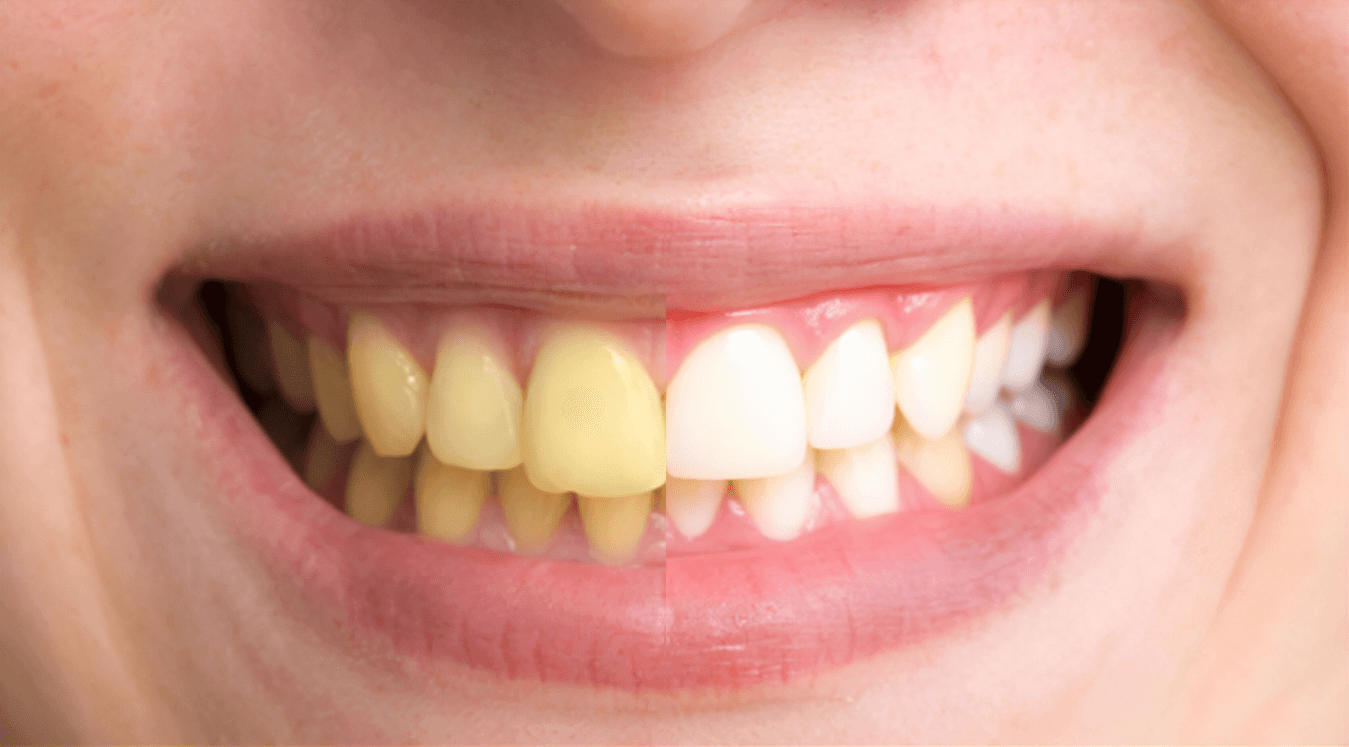
Harsh bathroom lights, coffee, and camera auto white balance all nudge smiles toward beige. If you need to whiten teeth in a photo on mobile for free, the goal is a brighter grin that still reads as enamel. This guide shows how Sinaï Studio’s mobile FREE AI images creation and editing workflow keeps teeth natural in minutes, backed by prompts and tool combos that work on both iPhone and Android. You’ll finish with a repeatable sequence for client headshots, ecommerce product shots, or your next LinkedIn portrait.
Key Takeaways
- Sinaï Studio’s Refiner tool lifts yellow tint and boosts highlight detail while preserving the micro-texture that makes teeth look real.
- Swap to Inpainting for stubborn stains, then use Image-to-Image Edit when you need a fully refreshed smile shape without plastic results.
- The free plan covers 25 edits per day, so you can compare variations, save Scenes, and export HD images before you ever upgrade.
Why Sinaï Studio nails natural teeth whitening on iPhone & Android
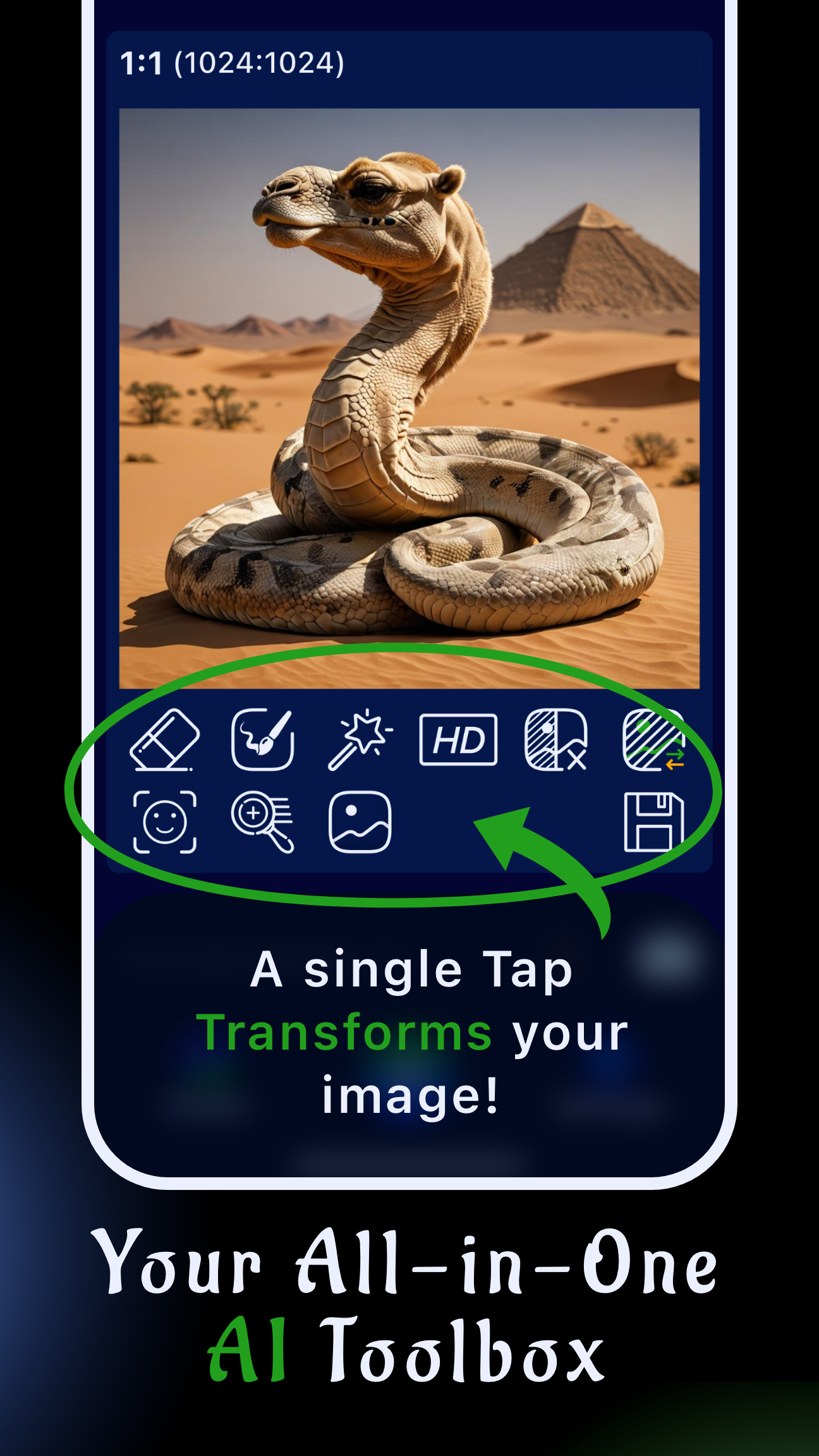
Sinaï Studio is built as a mobile-first AI editor, so you don’t need a laptop to pull off professional retouching. Once your photo is in the Studio, every adjustment stays in a controllable stack—perfect for clients who want quick revisions. If you’re tackling skin at the same time, bookmark our acne removal workflow for mobile to pair smooth skin with a polished smile.
- Edge-aware masking: Pinch to zoom and brush tiny areas; the app snaps to tooth edges automatically so you don’t paint gums by accident.
- Prompt-driven refinement: Refiner understands instructions like “soft white enamel, no blue cast,” keeping results subtle instead of blinding.
- Scenes for consistency: Save preferred prompt + mask combos as Scenes to replicate the same tone across a campaign.
- Privacy-focused: Edits process securely, so sensitive headshots or dental before-and-afters never leave your workflow.
Step-by-step: Whiten teeth in a photo on mobile (free & natural)
Follow this workflow for the fastest, most natural-looking whitening. Every step works on both iOS and Android.
- Import your photo. Launch Sinaï Studio, tap the camera icon, and load the portrait or selfie you want to polish.
- Duplicate the layer and zoom in. Tap the duplicate icon so you can toggle before/after versions, then pinch to zoom until the smile fills the screen.
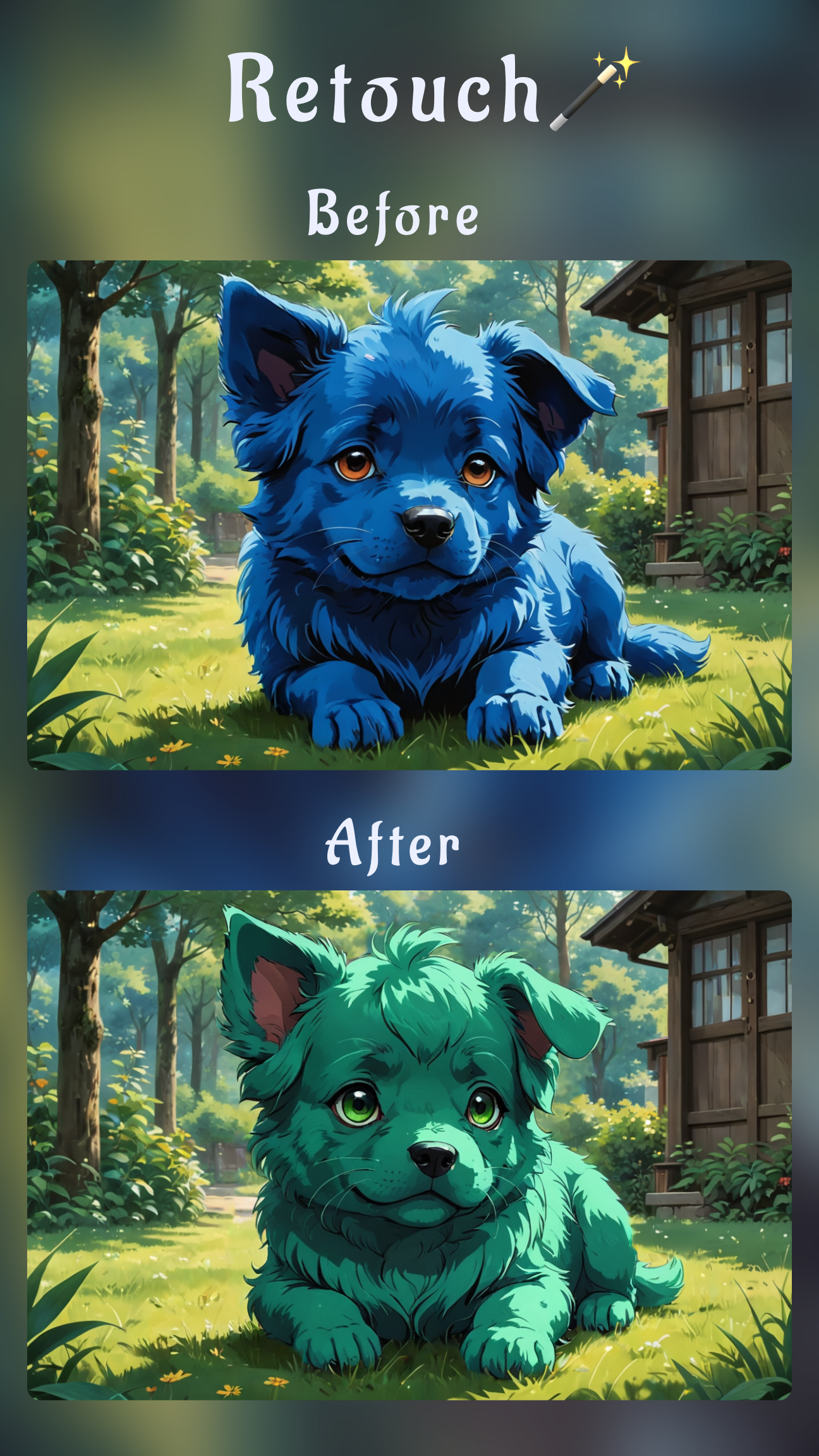
- Mask teeth with Refiner. Choose Refiner, brush only the teeth, and enter a prompt such as “brighten teeth, remove yellow tint, keep enamel texture.” Adjust the strength slider to taste before applying.
- Clean stains with Inpainting. Switch to Inpainting for darker spots near the gum line. Mask the trouble area and prompt “natural white enamel, match surrounding tooth.” This keeps the gum hue unchanged.
- Refresh the entire smile with Image-to-Image (optional). When a client wants additional alignment or shine, duplicate the edit, tap Edit (Image-to-Image), and prompt “natural bright smile, subtle sparkle, no over-whitening.” Pick the variation that looks closest to real enamel.
- Polish and export. Toggle the compare view, tweak saturation or warmth if needed, then save the Scene. Export in HD—your 25 free daily edits cover multiple versions without fees.
Refiner vs Inpainting vs Image-to-Image: choose the right combo
Each tool shines at a different moment in the whitening workflow. Mixing them keeps results believable.
- Refiner is your go-to for subtle brightening and texture preservation. Use it first on every edit.
- Inpainting handles isolated stains, lipstick transfers, or braces reflections that need precision cleanup.
- Image-to-Image Edit generates alternative smiles when you need fuller teeth, brighter reflections, or when the source photo is low quality.
Prompt formulas for realistic whitening
brighten teeth, neutral porcelain, keep shadow edges— ideal for studio headshots.remove coffee stains, natural white enamel, match gum color— solves uneven tint.clean braces reflections, polished enamel, no glare— keeps orthodontic hardware visible.natural white smile, slight shine, no overexposure— use with Image-to-Image variations.
Alternative free apps if you just need a quick fix
Sinaï Studio keeps everything in one place, but you can pair it with other free tools when you’re on a shared device or collaborating with non-designers.
- Snapseed (iOS/Android): The Brush tool with the Dodge effect is handy for tiny adjustments, though it lacks AI prompts.
- Lightroom Mobile: Use the Select People mask and lower saturation while raising exposure on teeth—great for photographers already syncing with Lightroom presets.
- PicsArt: Offers a dedicated Teeth Whitening tool, but export sizes are limited on the free tier compared with Sinaï Studio’s HD output.
Pro tips to keep smiles realistic
- Match skin temperature: If the face is warm-toned, bump tooth warmth a touch to avoid a blue cast.
- Respect translucency: Real enamel isn’t pure white—leave a hint of shadow near the biting edge.
- Check on another screen: Preview on a second phone or monitor; extreme whites jump out quickly.
- Balance the full portrait: Sharpen eyes or remove glare next so the smile doesn’t feel isolated—our mobile unblur guide is a handy follow-up.
- Export variations: Deliver two versions (subtle and standard). Clients love picking the one that matches their brand tone.
Ship the final edit with Sinaï Studio
Once you’ve locked the smile, queue the rest of your retouch workflow—swap backgrounds, adjust makeup, or build campaign-ready assets without ever leaving your phone. Explore more features inside the Sinaï Studio toolbox, and keep building your retouch stack with guides like acne removal, background swaps, and makeup editing. Ready to brighten every grin on your camera roll? Download Sinaï Studio and make natural teeth whitening a one-minute stop.